
MiniMax H3 Runs Locally on Mac: How h3.c + ComfyUI Fit a 144GB Model into 11GB of Memory
MiniMax H3 Now Runs Locally on Mac — A 144GB model that generates both audio and video really did produce a clip with sound on an M5 Max with 64GB of unified memory. For the past six months, the project had been blocked by the simple fact that “official support does not include Mac,” but now someone has gotten it working.
This post breaks down the entire pipeline: why the official ComfyUI integration installs on a Mac but cannot run the model, what h3.c actually changed, how 144GB of weights fit into 11GB of memory, how to use a nine-grid storyboard, and what you need before starting: 230GB of free disk space and the two and a half minutes an M5 Max needs to generate a five-second clip.

1. First, the Results: What This Workflow Can Generate
The test machine is an M5 Max with a 40-core GPU and 64GB of unified memory. All of the sample clips at the beginning were generated locally: a young woman in a neon-lit night scene, a woman in a white scarf on a snowy riverside street, and a Japanese girl on a seaside path at sunset. Each clip is around five seconds long.

Because the open-source weights run in uncensored mode, the generated content is not subject to platform moderation. Once the workflow is set up, you can develop the story exactly as you want it.
Here are the two key numbers from testing:
| Task | Resolution | Time | Peak Memory |
|---|---|---|---|
| Generate a 15-second clip | 640×480 | About 10 minutes | 23.7GB |
| Generate a 5-second clip | 640×480 | About 2.5 minutes | Just over 20GB |
This is the overall shape of the pipeline: from a nine-grid storyboard image to a finished video with both visuals and sound.
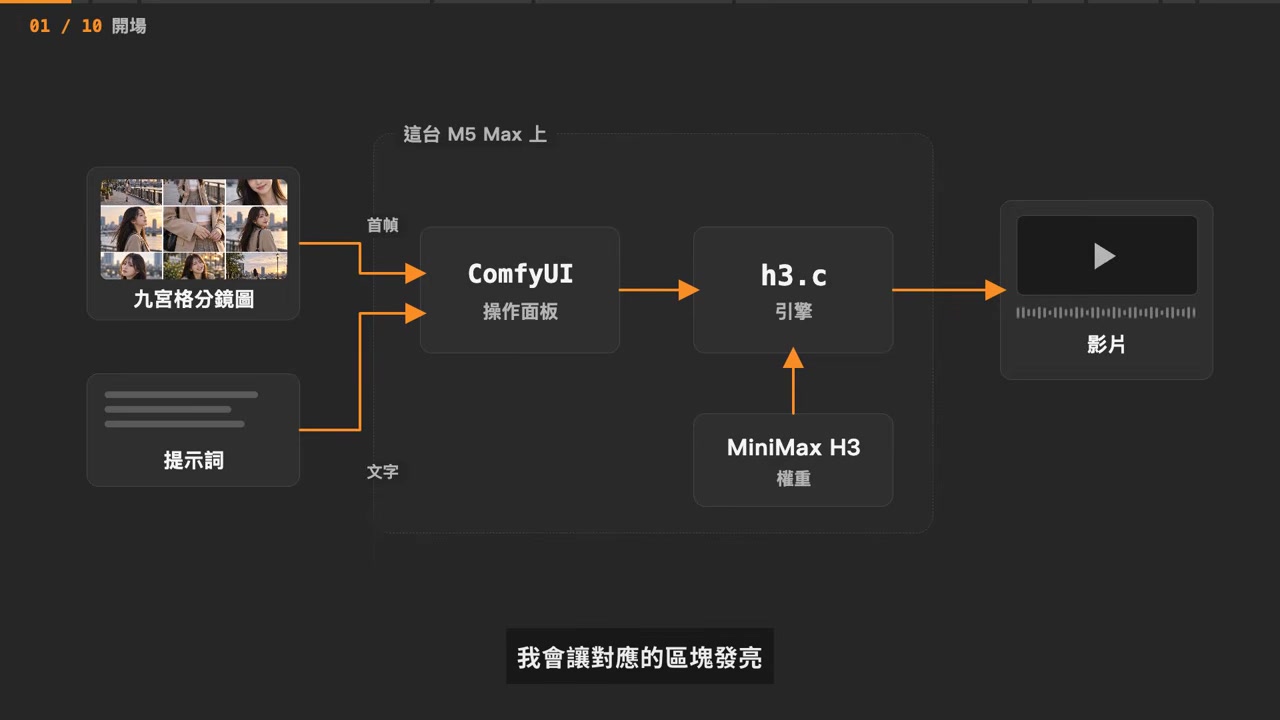
There is, however, one pitfall you need to know about in advance: when generating 10 or 15 seconds directly, the visuals come out fine, but the audio may turn into noise. This limitation applies throughout the article and gets its own section later.
2. MiniMax H3: Generates Video and Stereo Audio Together
MiniMax H3 is a general-purpose, open-weight, omnimodal video generation model released on July 31, 2026. Its core breakthrough is the synchronized generation of visuals and a stereo audio track in a single pass.
This means the model creates the picture and its original stereo soundtrack together, theoretically eliminating the need for post-production dubbing and lip-sync alignment. That is also its biggest difference from other open-source video models released around the same time. To see how it performs in other applications, read MiniMax H3 Hands-On Test: Generating Audio-Visual-Synchronized Video Locally on Mac / iPad with Draw Things, which takes an entirely different approach.
3. Two Input Modes: FL2VA and REF2VA
H3 has two input modes, and they cannot be combined in the same generation.
FL2VA (first-and-last-frame mode) is the most common:
- Use no images at all and generate a video directly from text
- Provide one first frame and have the video start from that image
- Provide both a first and last frame to define the image on which the video ends
REF2VA (multi-asset reference mode) lets the model reference a character’s appearance, a setting, an action, camera movement, or audio:
| Asset Type | Limit |
|---|---|
| Images | 9 |
| Videos | 3 clips |
| Audio | 3 tracks |
| Combined total | Up to 12 |
There is one easy-to-miss restriction: audio cannot be used on its own. It must be paired with at least one image or one video.
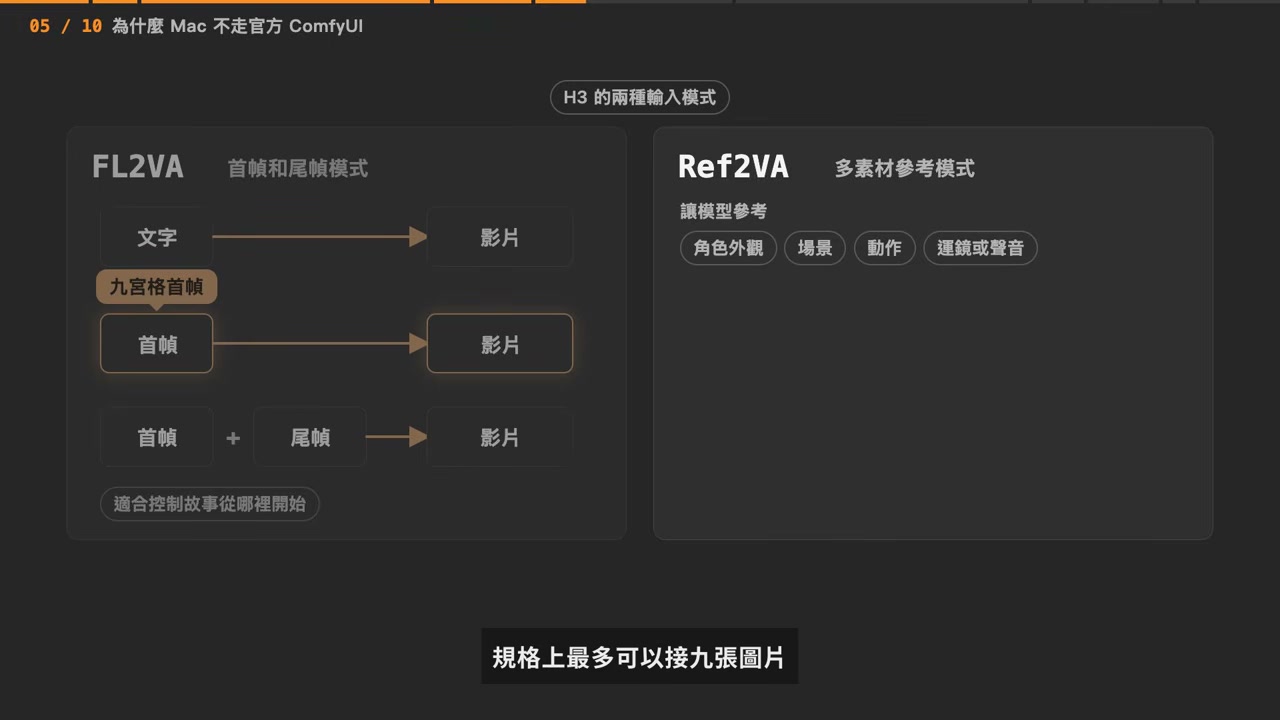
Which one should you use? In one sentence: use FL2VA for short clips, and switch to REF2VA only when you need character consistency or an audio reference, at the cost of an additional 62GiB download.
4. Why the Official ComfyUI Workflow Cannot Run Natively on Mac
When H3 was released, the official deployment options included vLLM, SGLang, Diffusers, and ComfyUI, although most were designed primarily for NVIDIA GPU environments.
The sticking point comes down to two issues:
- The compressed format recommended by ComfyUI is not currently supported on Mac’s MPS path
- The
Int8 Convertand NVFP4 quantization paths used by the official workflow also encounter compatibility issues on Apple Silicon’s MPS path
The official issue tracker contains a typical example: someone with a 64GB M4 Ultra managed to complete the installation and load the weights successfully, but the moment they clicked Start, it threw an error.
The problem is not that a Mac is slow. The official ComfyUI path runs into compatibility problems on Mac before performance ever becomes an issue. This distinction is crucial because it determines the direction of every solution that follows: do not optimize for speed; take a different execution path.
5. h3.c: An Apple Silicon-Native Engine by Redis’s Author
To address this problem, Redis creator antirez (Salvatore Sanfilippo) wrote a new inference engine specifically for Apple Silicon: h3.c. It is an open-source project under the MIT license with around 2.8k stars on GitHub.
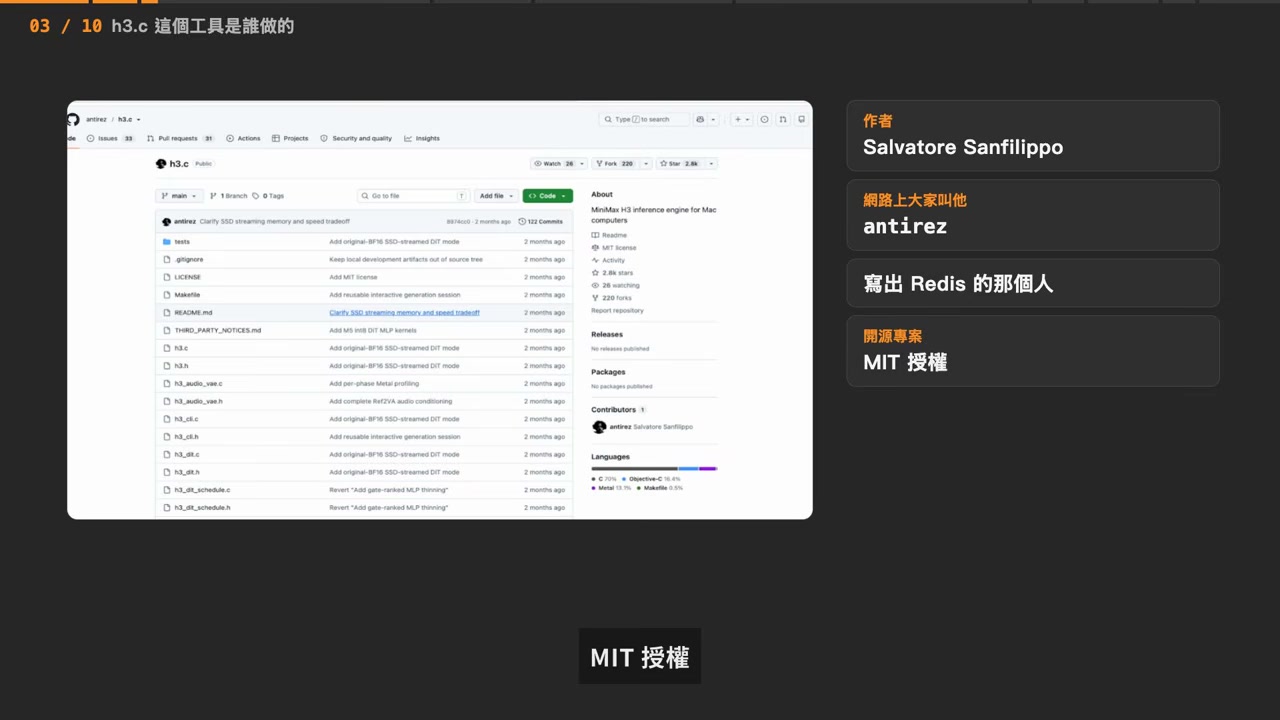
It Changes the Execution Method, Not the Model
h3.c does not turn H3 into a different model or permanently modify the official weights. It changes how the model is executed: it runs the official model directly using C, Metal, and MPS Graph, with the text encoder, DiT, and audio-video VAE loaded separately.
On M5, it can also take advantage of the chip’s neural acceleration to apply runtime Int8 quantization to critical layers, skip some layers, or read weights directly from the SSD while computing.
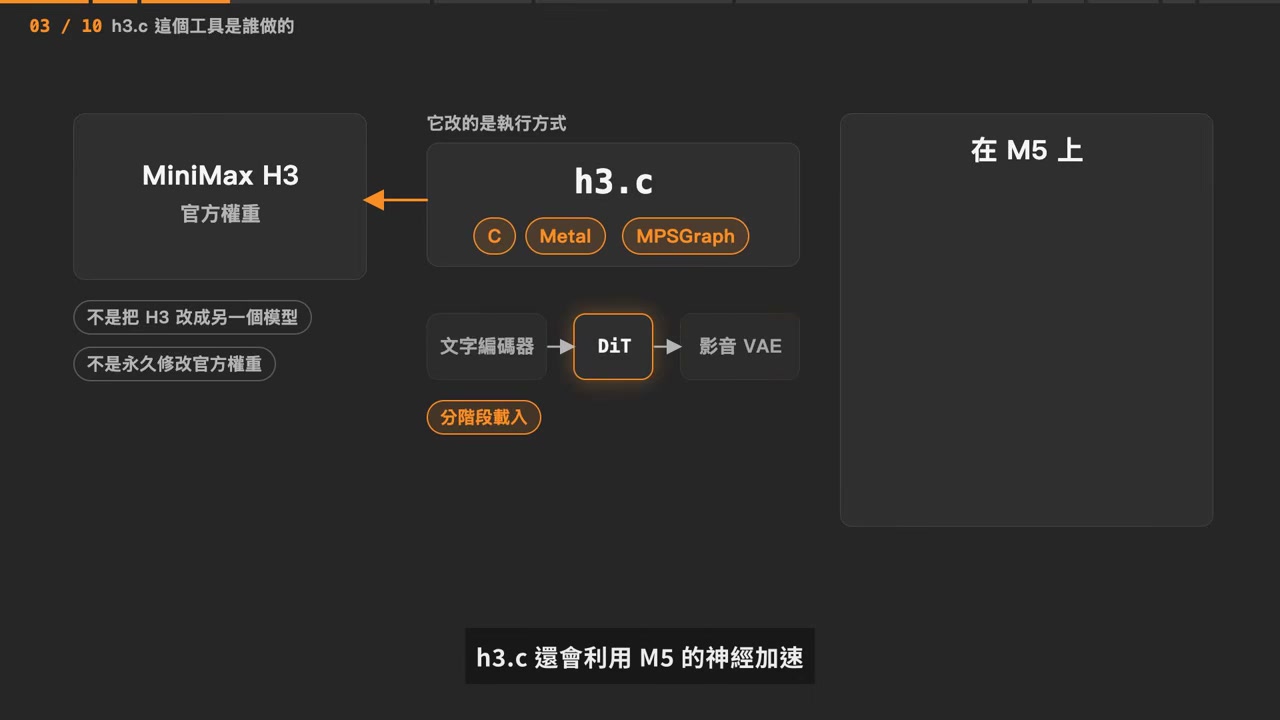
The advantages and disadvantages are straightforward:
- Upside: Mac finally has a native route that actually works, with speed, memory usage, and the seed under your control
- Downside: The weights are huge, and the fast options trade away some detail and composition
ComfyUI Is the Interface; h3.c Is the Engine
This is the key to understanding all the steps that follow:
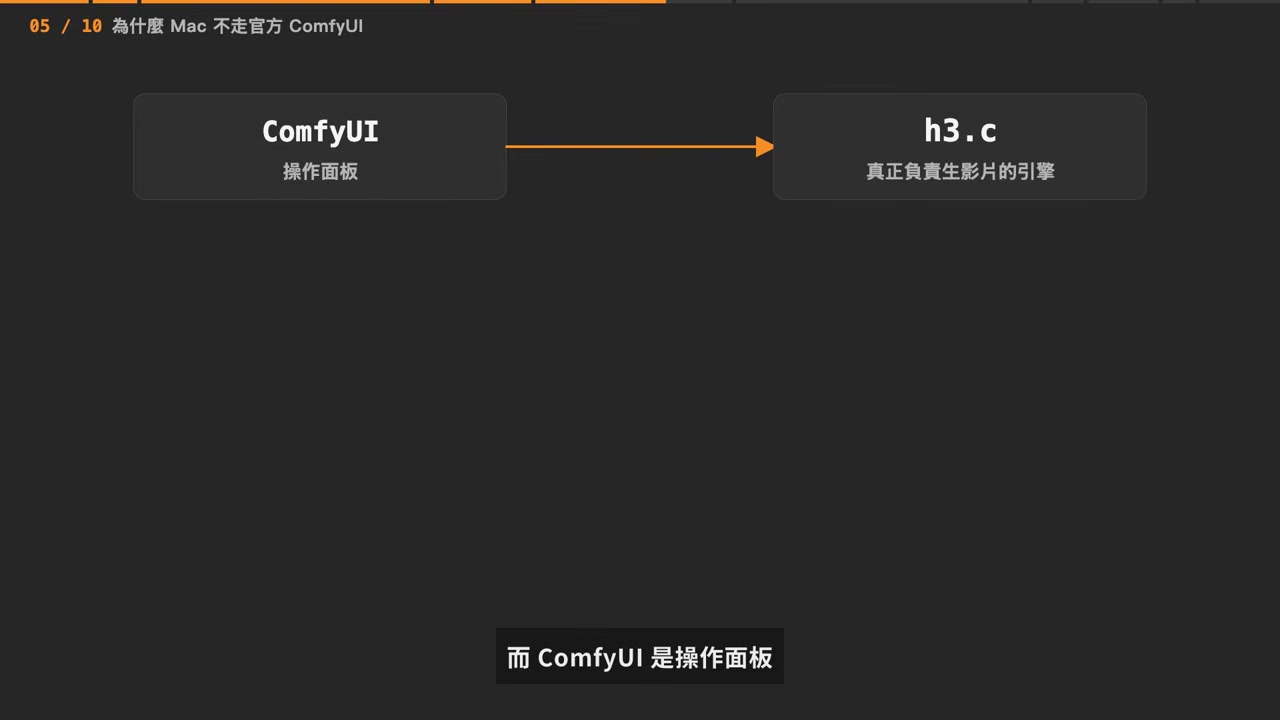
Originally, h3.c could only be controlled by typing a long string of commands in a terminal. Someone later integrated it into a mouse-driven ComfyUI panel. Text, first and last frames, images, videos, and audio references can all be wired directly onto the canvas, while resolution, duration, step count, Seed, and SSD streaming settings can be saved as reusable workflows.
But keep one thing in mind: this is not the official, complete H3 ComfyUI workflow. The official multi-timestep guidance, masked inpainting, H3-specific LoRA, and separate samplers and schedulers have not been validated with equivalent results on Mac. This panel covers the common features, but it still cannot swap samplers as freely as the official NVIDIA workflow.
6. SSD Streaming: How 144GB of Weights Fit into 11GB of Memory
This is h3.c’s most practical feature. It does not address image quality; it addresses memory.
MiniMax H3’s weights are very large, and the Mac’s CPU and GPU share the same unified memory. When a video model begins computing, if too many weights remain in memory at the same time, a Mac with less RAM may hit memory pressure before it has generated a single clip.
h3.c calls this approach SSD Streaming. A more general name is weight streaming or out-of-core inference: the model loads the next batch of weights from the SSD into unified memory only when it needs them, computes with that batch, and then swaps in the next one.
Testing the same five-second clip:
| Metric | SSD Streaming Disabled | SSD Streaming Enabled | Change |
|---|---|---|---|
| Peak memory | About 20.13GB | About 11.08GB | About 45% lower |
| Generation time | 152.6 seconds | 189.5 seconds | About 24% slower |
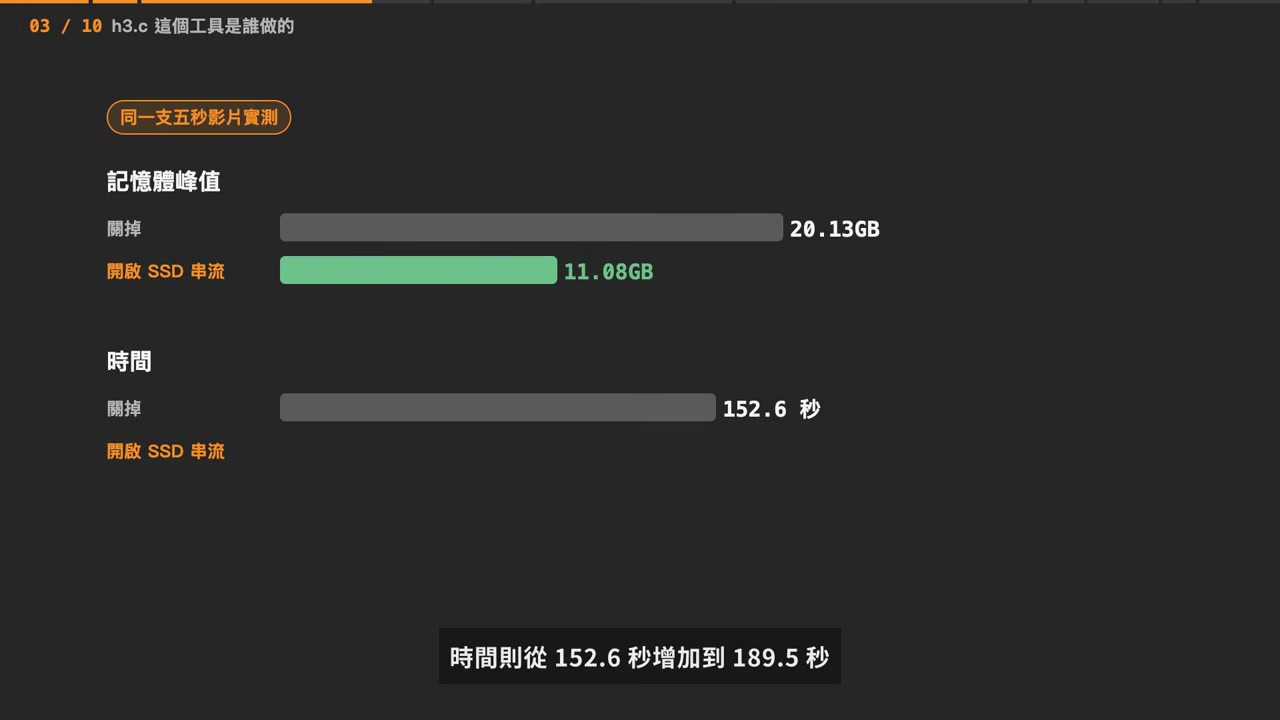
Trading speed for memory—that is the entire cost.
There is also a hard constraint: SSD Streaming cannot be enabled at the same time as M5 Int8 FC2 acceleration. The latter uses Metal 4 and TensorOps to run critical layers with Int8-quantized computation for additional speed.
You therefore have to make a choice:
| Your Situation | Recommendation |
|---|---|
| You have enough memory (64GB unified memory) | Disable SSD streaming and enable Int8 FC2 acceleration for greater speed |
| Memory is tight, or you want to run it on a lower-memory Mac | Enable SSD streaming and trade speed for lower memory usage |
7. Nine-Grid Storyboards: Lock In the Character, Then Let the Model Perform
The nine-grid is not an input format specified by MiniMax H3. It is a community technique used in AI video circles to arrange characters and shots before production begins. The process starts by generating a 3×3 storyboard, with one shot from the same story in each cell.

This time, we did not start with a live-action reference photo. Instead, we used text to spell out her appearance, her clothing, and the nine shots the story should cover: an opening wide shot, walking toward the camera, a facial close-up, turning back with a smile, and so on.
There are three points that need to be made clear:
First, a short clip does not necessarily need a nine-grid. A character reference image, a first-frame image, and a video prompt are enough to begin generating. A nine-grid is better suited to a longer story, or to cases where the same character is split across multiple short clips.
Second, the nine-grid is not a second-by-second action script, and it does not guarantee that the model will perform the panels in order. It is more like a visual storyboard sheet that lays out the same protagonist, setting, costume, and shot direction.
Third, the video prompt still determines what happens during those five seconds. The practical approach is to use the entire nine-grid as the first frame of the clip, allowing the model to reference the character and the overall visual direction. The prompt itself describes only one action, such as “The girl walks toward the camera along the seaside path, then turns back to look at the camera.”
If the same character needs to appear across many clips, a more reliable workflow is to create a primary reference photo and character sheet → use an image-generation model to generate a nine-grid based on that photo → manually check that the faces, hair, and clothing remain consistent across all nine panels.
8. The Complete Workflow: From Installation to the First Clip
Getting h3.c running involves more than downloading the model, compiling h3.c, and installing ComfyUI. You also need to integrate h3.c with ComfyUI so that the prompts, images, and parameters on the canvas are passed through correctly and the generated results return to ComfyUI for previewing and archiving.
Manually configuring these paths is extremely easy to get wrong, so the practical solution is the community-curated H3.c + ComfyUI operation pack: unzip it, double-click the installer, and choose just two things.
Step 1: Choose the Installation Location
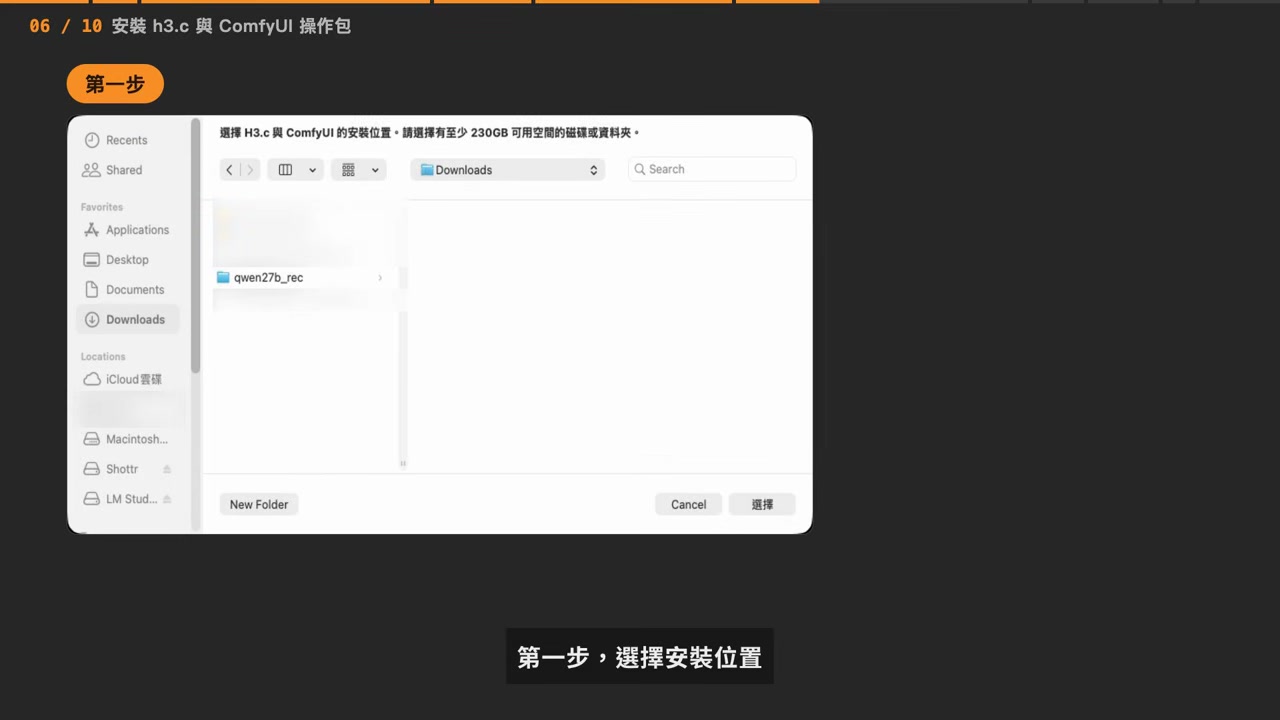
The H3 FL2VA weights alone are about 144GB, and installation and execution require additional space, so you should keep at least 230GB free on this drive. If the built-in storage is not enough, select an external SSD at this step.
Use APFS, the native Mac format, for external drives. exFAT is not supported.
Step 2: Choose the Mode to Install

For a first-time setup, start with FL2VA, the mode for text, first-frame, and last-frame inputs. It can generate directly from text, or use a first frame or both a first and last frame to control the clip’s opening and ending. Later, if you want to add multiple character images, reference videos, or reference audio, install REF2VA. This downloads approximately 62.16GiB of additional reference weights. You do not need to install everything on the first run.
Step 3: Download and Install
The installer downloads the H3 model from fixed-version official sources, downloads the h3.c source code and compiles it on this Mac, and then creates a dedicated ComfyUI directory, an h3.c operation node, and the workflow used for this session.
Step 4: Automatic Check

After installation, it performs two checks: first, it uses h3.c --info to verify the model layout; then it briefly launches a fresh ComfyUI instance to confirm that the H3NativeVideo node actually loads. Only when both checks pass are the h3.c installation, official model, and ComfyUI Bridge correctly connected in this directory.
If you are concerned about the security of the operation pack, the installer scripts, ComfyUI nodes, and workflow source code are all included as plain text. You can open them line by line in TextEdit to see what they do. The H3 model is still downloaded from the official Hugging Face repository and is not bundled directly into the archive.
What to do if macOS blocks it: When you double-click a
.commandfile, the system may say “Apple cannot verify it is malicious software.” This is because it has not been code-signed by Apple, not because there is anything wrong with the file. Click “Done” rather than “Move to Trash” in the warning window → open “System Settings → Privacy & Security” → scroll down to “Security” → click “Open Anyway” next to it. Alternatively, typebashfollowed by a space in Terminal, drag the.commandfile from Finder into Terminal, and press Return to execute it.
Step 5: Generate Your First Clip
Double-click the launcher. It prints the Mac’s local URL and opens ComfyUI. For the first run, load the basic FL2VA workflow, select a first-frame image, paste in the video prompt, confirm the resolution, duration, and Seed, and press Queue Prompt to start generating.
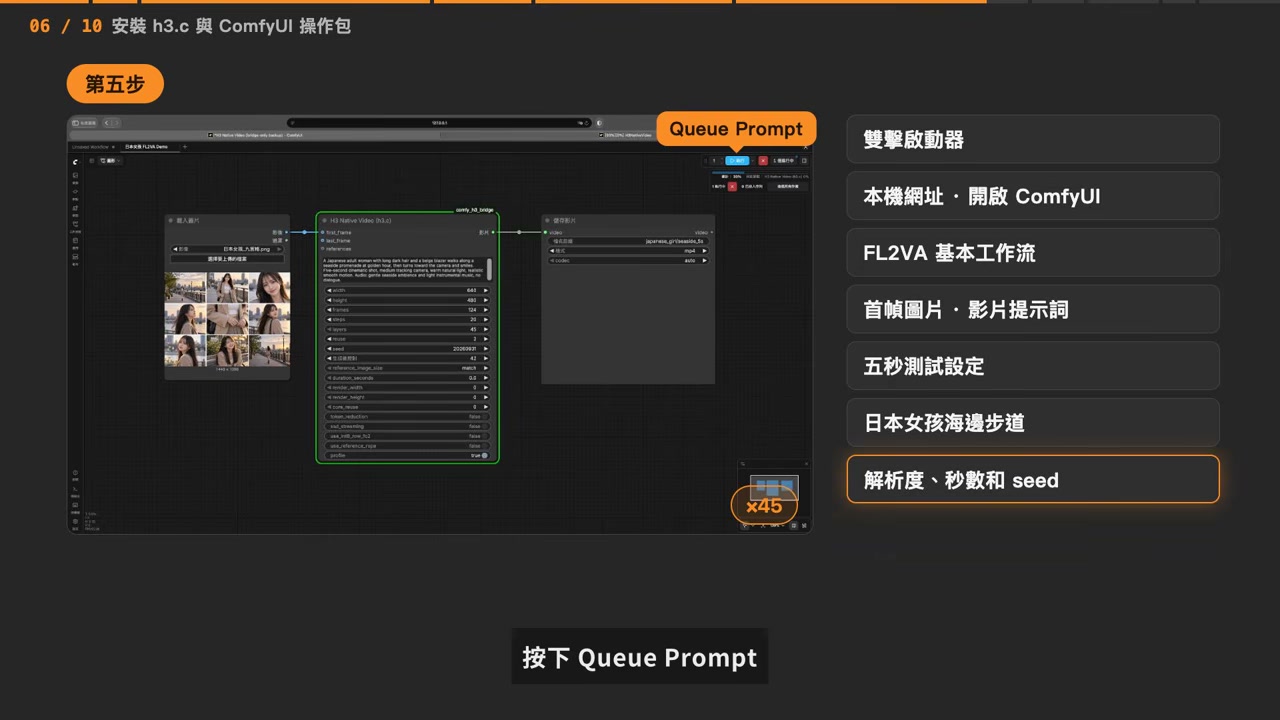
Under the hood, h3.c still handles the actual video generation. ComfyUI’s role here is to turn what were originally terminal commands into a graphical interface—you can adjust parameters with the mouse, queue and cancel jobs, preview results, and save them.
From then on, each session begins with a double-click on the launcher. You do not need to recompile h3.c or reconfigure the model paths.
9. Known Mac Limitation: Audio Breaks Beyond Five Seconds
This limitation needs to be called out separately.
In testing, directly generating clips longer than roughly five seconds in the h3.c environment on this Mac still runs into a known limitation in audio quality. The audio may turn straight into noise, while the visuals remain normal. This is the root cause of the earlier 15-second test in which the picture worked but the audio became noise.
This test therefore focuses on a five-second clip as its main line and does not include a 10-second editing workflow. Five seconds is the practical sweet spot on this machine, not a ceiling on the model’s capabilities.
There is another small detail: the beginning of the finished clip briefly flashes the nine-grid.

The solution is to trim off that opening. Everything after it is normal generated footage.
10. Advanced Workflow: A Local LLM Writes the Storyboard + Local Image Generation Builds the Nine-Grid
To gain more control over the nine-grid, you can move the entire pipeline onto your own machine as well:
- Use a local uncensored 27B language model to write the prompts for all nine shots
- Use a local uncensored image-generation model to generate nine individual single-shot images
- Use Photoshop or a Python script to assemble them into a 3×3 nine-grid
- Feed the completed nine-grid into h3.c to generate the video
You can use these models:
- Qwen3.8 27B Uncensored OptiQ 4bit (mlx-community edition) — optimize video prompts and write shot-by-shot prompts
- Juggernaut XL v9 (RunDiffusion edition) — generate a character reference image first, then use it as h3.c’s first frame
As for the specific action prompt in the final video, that still depends on your own plot design. For how to set up this local large-model stack, see MiniMax M3.1 Flash Hands-On: A 7-Billion-Token Workhorse and Agentic Auto-Editing.
11. Which Model Can Your Mac Actually Run?
Open-source models are advancing quickly, and the best model for the job depends heavily on the Mac chip and memory capacity. The 144GB H3 is only today’s choice; a smaller version may be available tomorrow.
The Mac Model Guide lets you look up what works for your setup: choose your Mac chip and memory, then enter your intended use and usage context. It lists the model versions your machine can run, each with a Chinese-language explanation of what technology it uses and what trade-offs it involves.

Currently, it can only list the “models you can use”; it does not automatically select the best one, and the email update notification feature has not officially launched.
Summary
Technically, getting MiniMax H3 working on Mac is not a mystery: the official ComfyUI workflow cannot run on Apple Silicon because of quantization and MPS-path compatibility, so h3.c provides an alternative execution path using C + Metal + MPS Graph. When 144GB of weights cannot fit into a lower-memory Mac, SSD streaming swaps them in from the drive batch by batch, reducing peak memory from 20GB to 11GB at the cost of 24% more generation time.
There are four conclusions worth remembering:
- The official ComfyUI workflow cannot run natively on Mac because of compatibility, not performance — do not waste more time tuning parameters
- Choose one: SSD streaming or Int8 FC2 acceleration — disable streaming for speed when memory is plentiful; enable it to save memory when memory is tight
- The nine-grid is a visual storyboard, not an action script — the prompt always determines what happens during those five seconds
- Five seconds is a practical limit on Mac — longer clips still look fine, but the audio breaks down
Before you start, confirm three things: this Mac is Apple Silicon, has Python 3.10 or later and FFmpeg, and has at least 230GB of free disk space.
Related tools:
- h3.c (antirez):https://github.com/antirez/h3.c
- MiniMax H3 official weights:https://huggingface.co/MiniMaxAI/MiniMax-H3
- H3.c + ComfyUI operation pack:https://github.com/trytrylook888/h3c-comfyui-operation-pack/releases/latest/download/H3c-ComfyUI-Operation-Pack.zip
- Manual, line-by-line command version for when the installer will not run:https://trytrylook888.com/posts/h3c-comfyui-manual-install/
- Mac Model Guide:https://mac.trytrylook888.com
If this h3.c workflow is useful to you, leave your Mac model, memory capacity, and results in the comments so that others can judge whether their own Macs can run it. And don’t forget to check MiniMax H3 Martial-Arts Video Generation Workflow: An Engineering Breakdown of Running an Open-Source Video Model on 12GB of VRAM and Should You Buy an RTX Spark? The Break-Even Math for a 128GB Laptop vs. 2 L40S GPUs—one explains how to save VRAM, while the other covers whether you need to buy more.