
WorkBuddy Tutorial: How to Use AI for Office Work—A Breakdown of the Logic Behind 8 Core Features
Two years ago I used Codex to write code. Now I’ve handed almost all of my Chinese-language content creation to WorkBuddy—the AI Agent workbench from Tencent. This isn’t about which one is stronger; rather, when your work is in Chinese, involves long-form content, topic ideation, and research organization, an Agent that can execute tasks directly, access your files, and write fluent Chinese can save you an enormous amount of back-and-forth.
This is a complete breakdown of WorkBuddy, from downloading it to using it smoothly. Here’s the core conclusion up front: WorkBuddy may look like it has a lot of features, but it really does only two things—let AI reach your world and make AI work professionally. The remaining features—workspaces, models, Assistants, and automation—are simply the glue that connects these two capabilities. Once you understand this logic, you’ll know how to use the tool properly instead of clicking blindly through its buttons.
1. Why I Switched Back from Codex
WorkBuddy Personal Edition launched in March, I tried it in June, and after using it for a while, I switched to Codex. The reason was simple: at the time, WorkBuddy’s comprehension and execution fell a considerable way behind Codex. Codex felt like a senior employee, while WorkBuddy still felt like an intern.
The turning point came from mid-July through August. A wave of Chinese models launched one after another: Kimi K3 arrived on July 16, the official release of DeepSeek V4 followed a few days later, and GLM-5.3 came out in mid-August. With a new model foundation in place, WorkBuddy’s own Agent capabilities evolved as well.
The result is that, for the same Chinese long-form task, the output no longer goes around in circles. Once you have native Chinese + direct execution + access to local files, I’ve barely opened Codex during the past two weeks.
2. Download and Installation: Three Platforms + WeChat QR-Code Login
Download it from the official workbuddy.cn website. Windows and macOS versions are available, along with a HarmonyOS version. You can download it directly over China’s domestic network without dealing with proxies or registration hurdles. Click “Next” through the installer, then scan a QR code with WeChat to log in and start using it—this is one of the simplest parts compared with overseas Agent tools.
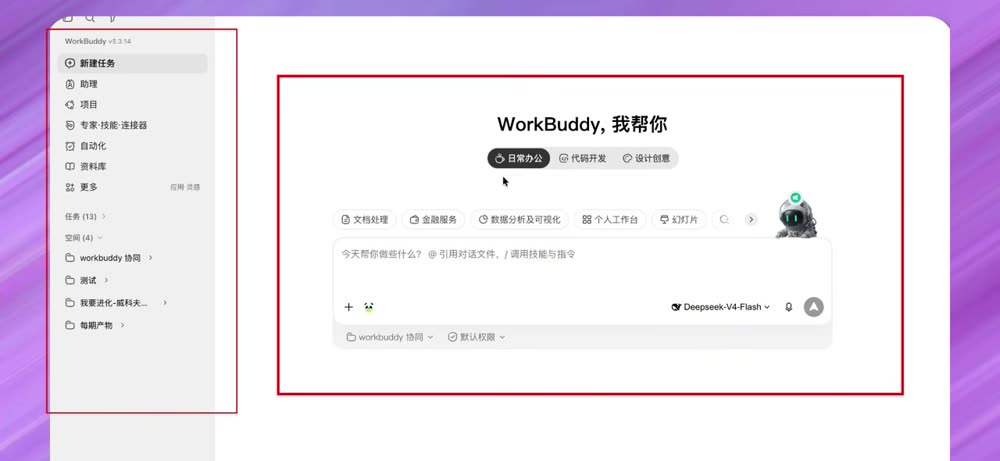
Once installed, the interface has two main areas: the primary chat window in the center and a task-related toolbar on the left.
3. Getting to Know the Interface: Scenarios, Modes, Models, and Workspaces
3.1 Scenario Options: Officially Preset “Task Examples”
Above the main window are three scenarios: Everyday Office / Code Development / Design & Creativity. When you select a scenario, the row below changes accordingly. Everyday Office includes document processing, financial services, data analysis and visualization, a personal workspace, and presentations; Code Development has a different set of options.
Clicking these entries automatically fills the chat window with a set of prompts. Some also bring in Experts and Skills. These are officially preset task examples that let you run a workflow with one click and see what it can do. This “try it first, understand it later” approach is the fastest way for beginners to get started.
3.2 Three Modes: Execution Is the Default
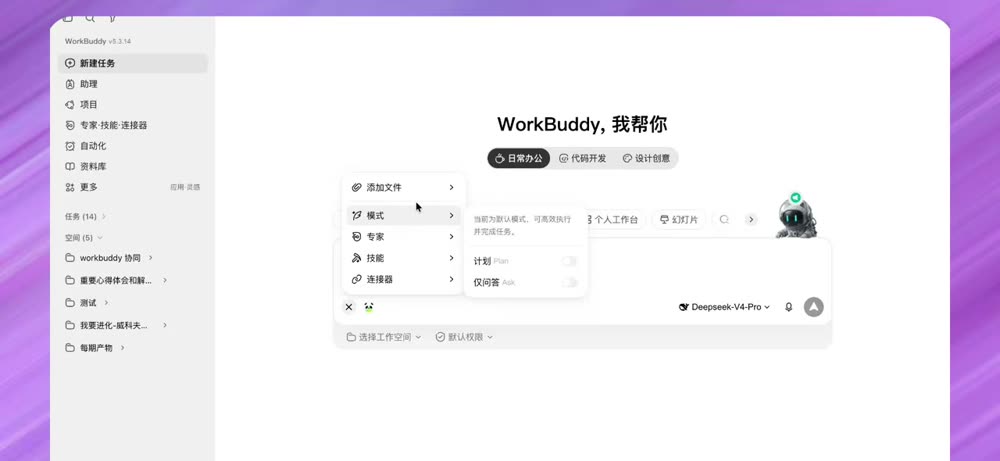
Click the plus icon in the lower-left corner, and the menu offers options for adding files, Experts, Skills, and Connectors, along with a Mode selector. WorkBuddy has three modes:
| Mode | Behavior | When to use |
|---|---|---|
| Craft (default) | Executes tasks directly: writing code, creating documents, controlling the computer | For real work; use it by default |
| Plan | Produces a plan only; takes no action | When the task is too large; see how it breaks it down first |
| Ask | Answers questions only; does not touch your files | Pure discussion |
One change between versions is worth noting: in the old version, the three modes sat side by side; in the new version, Craft is the default, while Ask and Plan have been tucked deeper and are off by default. The product signal is clear—the official team wants you to treat WorkBuddy as a tool for getting work done, not just another chat box. If you just want to ask a quick question, use an “Assistant”; there’s no need to switch modes.
3.3 Model Selection: Choose the Model for the Task, Not Automatically the Most Expensive One
The model selector is in the lower-right corner. This is one of WorkBuddy’s most satisfying features: Tencent’s in-house Hunyuan still lags behind, so WorkBuddy has brought in essentially all leading Chinese models as soon as they launch. With new models such as Kimi K3, DeepSeek V4 Pro, and GLM-5.3, you can select them in the interface on the day they launch or the next day. Usage is charged through subscription credits, so you don’t have to set up an API yourself.
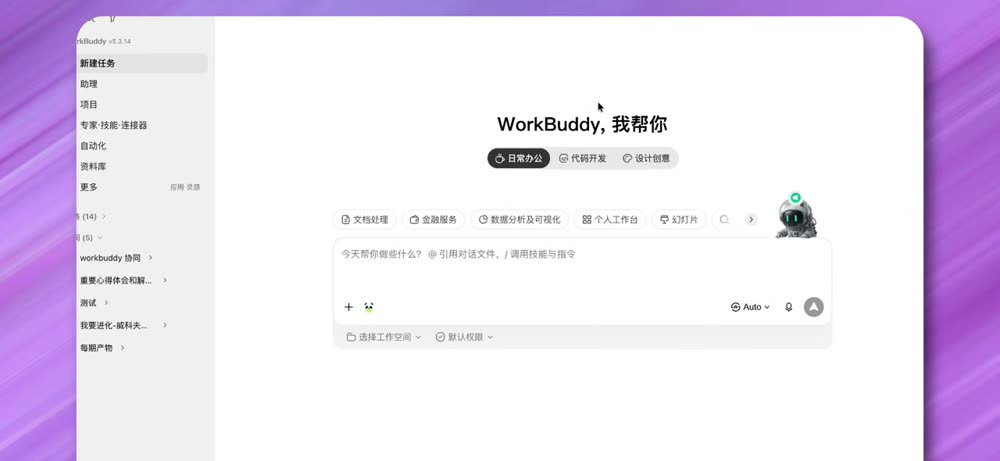
There’s only one rule for choosing a model: choose the model for the task. Use a cheaper model for simple tasks, such as DeepSeek V4 Flash, which is fast and saves credits. Switch to a more expensive model for complex tasks, such as Kimi K3 or GLM-5.3. A higher credit multiplier means a more expensive model that consumes credits faster, so don’t use the most expensive tier from start to finish—your credits won’t stretch that far. If you don’t feel like choosing, select Auto and let the system allocate models based on task complexity.
One easily overlooked point is that there’s also a permission toggle at the bottom. It defaults to “Default Permissions”; once you’re comfortable with the tool, switch it to “Full Access.” Keeping the default is safest while you’re getting started.
3.4 Workspaces: Use a Workspace for Long-Term Work, a Task for Temporary Work
This is essential to using WorkBuddy well, and it’s also the easiest thing to get wrong.
Every new conversation in WorkBuddy is called a “Task.” A task manages how you chat and work during that particular session. But if you have several conversations open at once and they all belong to the same large project, you need a Workspace to manage them. You can think of a workspace as a separate room for a long-term endeavor: create a workspace for a project, manage an account, or organize an event, and all files and outputs related to that project stay neatly organized inside it.
And the workspace is actually a local folder on your computer, not a virtual directory in the cloud.
There’s only one criterion: use a workspace for long-term work and a task for temporary work. If something will take a few weeks, create a dedicated workspace. For a quick question or a small task, start a task and discard it when you’re done. If you skip a workspace for long-term work to save effort, all the outputs pile up in the default directory, and after a while you won’t be able to find anything yourself—the reason many people say it “gets messy over time” lies here.
4. Connectors and the Library: Letting AI Reach Your World
First, think through one question: How can AI help you get work done?
A large language model is effectively blind. It can’t see the files in your Tencent Docs, the emails in your mailbox, or join your meetings.
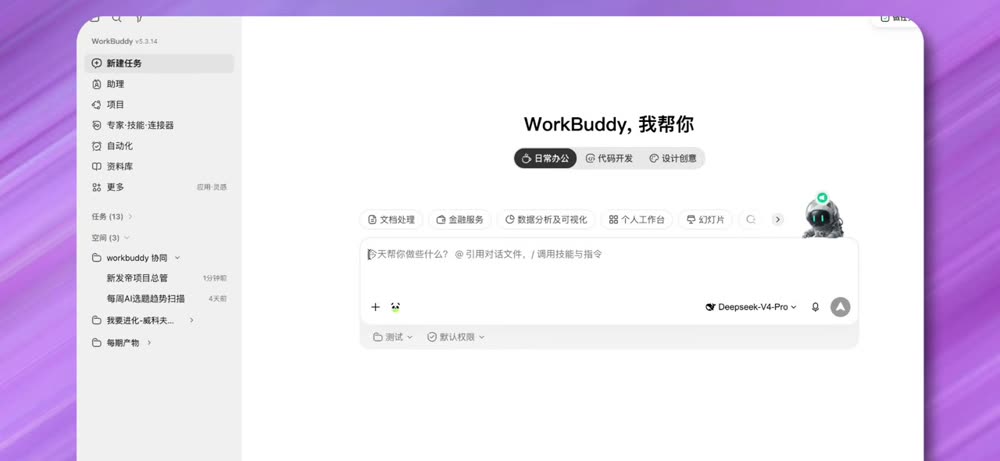
- Connectors give it hands and feet. To have it send emails, connect an email connector. To let it read and write Tencent Docs, connect the Tencent Docs connector. Once connected, it can search, write, and work with content related to your previous work within the permissions you grant.
- The Library is the filing cabinet for local and cloud-based content. Anything you create with WorkBuddy, whether it’s temporary task output or a file inside a workspace, can be viewed and accessed in one place in the Library, or uploaded with one click to a cloud knowledge base, such as the ima knowledge base. The difference is that a workspace is the workbench where you get things done, while the Library is the global filing cabinet.
How should you choose connectors? The standard is almost too simple: connect whichever external systems AI needs to access; don’t connect the ones it doesn’t. The goal isn’t to connect as many tools as possible. Too many integrations can leave AI with too many choices and make it more likely to select the wrong tool. Connect what you need, when you need it.
5. Skills and Experts: Making AI Work Professionally
5.1 Skill = A Manual for “How to Do It”
Many people think that installing a Skill is all it takes for AI to do the work, but that isn’t entirely true. A Skill is essentially an instruction manual for how to do something: it specifies a fixed workflow—what to do first, what to do next, and what to deliver at the end. Once you install it, AI follows this process for that type of work instead of improvising on its own.
Take my own example. Every day, creating content for social media involves one task I am sick of repeating—finding topics. Manually scrolling through different platforms is tiring and makes it easy to miss things. This job can be broken down into a fixed set of actions and packaged as a Skill:
- Pull newly emerging content in the AI office-work field from designated information sources.
- Filter out purely technical topics and anything irrelevant to the audience.
- Turn the rest into candidate topics using a predefined framework: a one-sentence summary plus an entry angle.
- Score each candidate topic: how popular and timely it is, whether it offers differentiation, how easy it is to demonstrate, and whether it has a twist.
- Sort the topics by score and output a list of today’s topics, with a title suggestion for each one.
- Save the list in the topic workspace you’ve created.
These six steps are what I used to do manually every day. Now they’re packaged into a Skill: with one sentence a day, it runs from start to finish.

The essence of a Skill isn’t making AI smarter; it’s packaging a fixed approach into a capability you can reuse. If you’ve done something several times and the steps are largely unchanged, it’s worth turning it into a Skill.
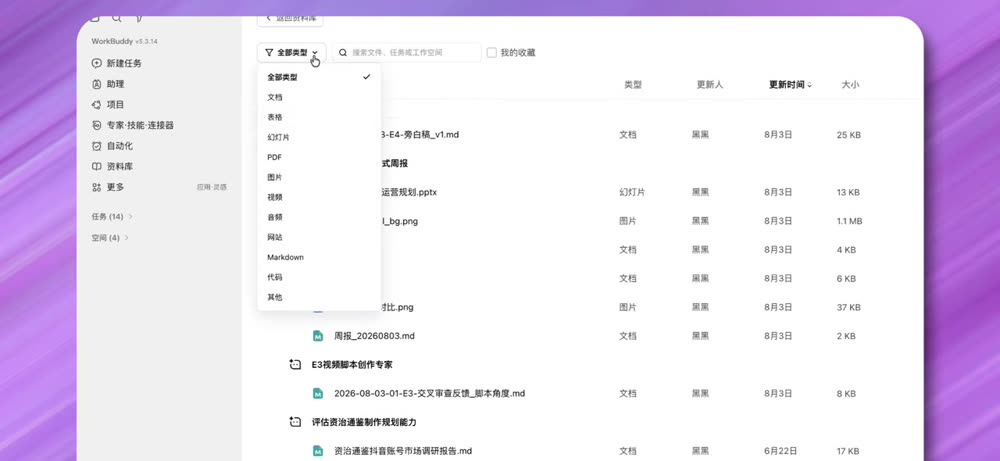
WorkBuddy’s Skill Market is already stocked with a huge number of categorized Skills, and you can package your own as well.
5.2 Expert = A Professional Perspective; Expert Team = A Collaboration Mechanism
Skills determine “how” to do something, while Experts determine “who the AI is” and what professional perspective it takes. For example, if you’re analyzing an earnings report, in normal mode it’s just an AI that can read files. Switch to a Financial Analysis Expert, and it breaks down the report like an analyst—which metrics to focus on, how to assess risk, and what conclusions to draw. The perspective is completely different.
Expert Teams are more abstract. They’re defined as a collaborative execution mechanism: when a complex task requires people with different roles, rather than asking one Agent to play every role, you can actually assemble an AI team. A team leader automatically breaks down the task, multiple Experts execute in parallel, and the results are integrated into a final deliverable. The marketplace already has ready-made Expert Teams for content creation, short-video creation, and Xiaohongshu creation.
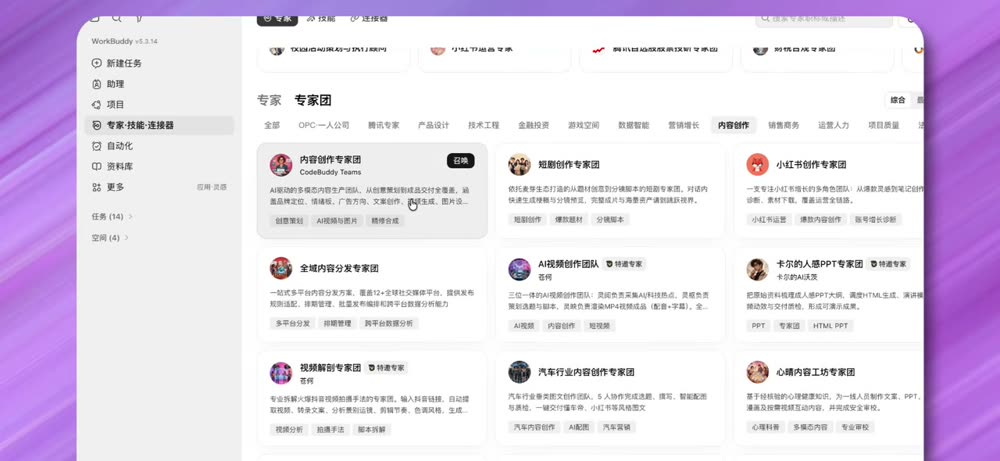
Here are a few observations from my hands-on testing. Skills and Experts can genuinely improve the output of a plain conversation, but if you use a preset Skill, the problem of homogenized output comes with it—your work will increasingly resemble everyone else’s. Also, with the Expert Team workflow, the amount of communication between team members can sometimes be substantial, so the credit consumption is no joke.
6. Assistants and Automation: A Central Manager + Scheduled Work
6.1 Assistants Do Three Things
First, they serve as the central manager for all your scattered tasks. As mentioned earlier, tasks that aren’t placed in a workspace are scattered across the default directory and become difficult to find over time. The Assistant corresponds to that folder: screenshots you drop in casually and generated documents are all here, managed through one entry point. Workspaces manage the projects you deliberately set up, while the Assistant manages the things you do on the fly: one keeps things organized, the other catches everything else.
Second, they provide a lightweight Q&A entry point wherever you are. Translate a sentence, look up a word, or brainstorm a few title ideas—you don’t feel like starting a task or opening a workspace at all. Send it straight to the Assistant and move on when you’re done. By tucking Ask mode away and making the Assistant lightweight, the official team is expressing the same idea: do substantive work in tasks, ask quick questions in the Assistant, and keep the two paths separate so they don’t get in each other’s way.
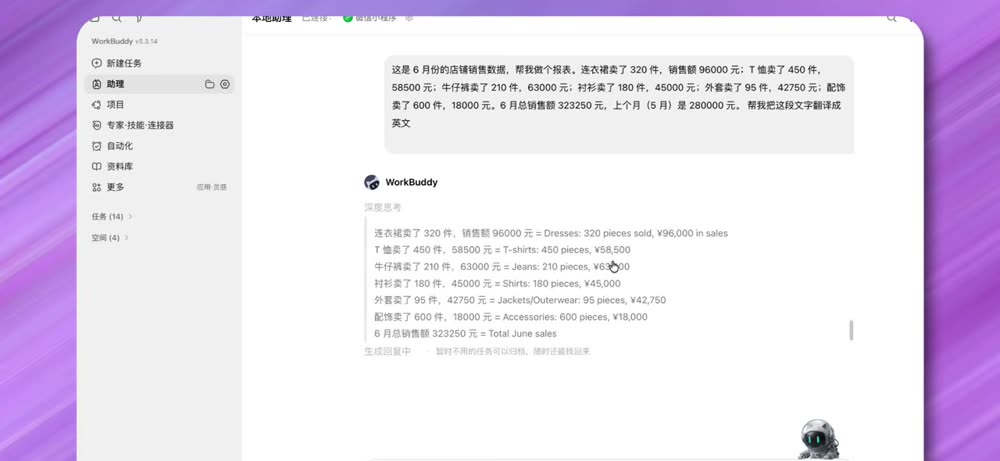
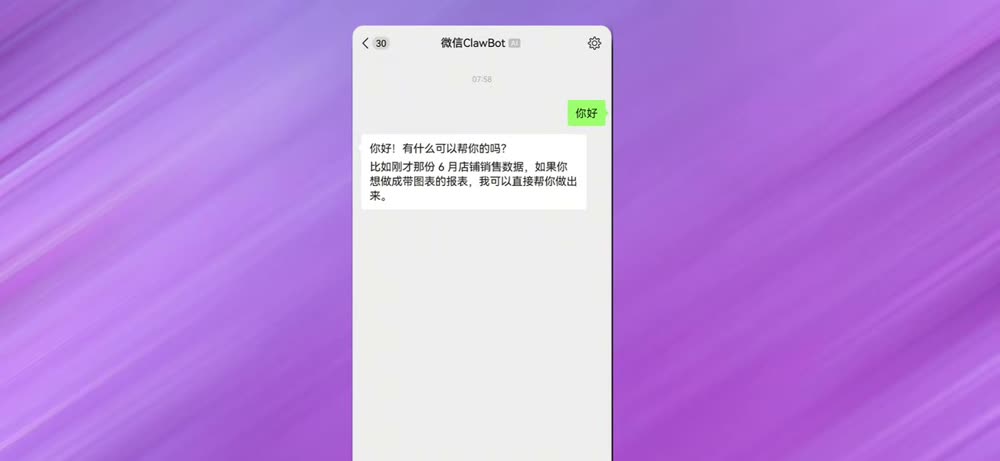
Third, they can integrate with WeChat, WeCom, QQ, and Feishu to work remotely. After linking WeChat, a contact named ClawBot appears in your WeChat chat list. When you’re out, pull out your phone and send it a message; the Assistant in WorkBuddy on your computer receives it, completes the task on the computer, and syncs the result back to WeChat on your phone. The WorkBuddy mobile app can do the same thing, but WeChat is already an app you use throughout the day, so you can send a message in seconds without opening a separate application.
The Assistant also has a very useful setting: Automatically Clear Historical Context. Once enabled, historical context that hasn’t been active for a long time is no longer sent to the model, and you can set how much historical context to include each time. This can effectively reduce token consumption, improve response speed, and keep answers focused and free of unrelated context.
6.2 Automation: Run Tasks Automatically on Schedule
Automation turns a repetitive job into a scheduled task that runs by itself when the time comes, so you don’t have to manage it. You can choose a recurring schedule, an interval, or a one-time run, and attach a workspace, connectors, and Skills.
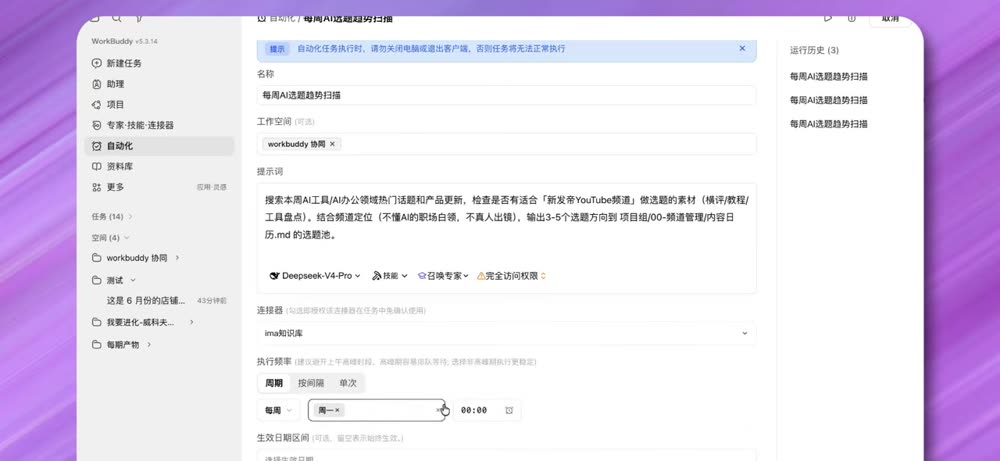
But there’s one prerequisite: for recurring tasks, run them manually a few times first. Confirm that the results are stable and that it won’t do anything unexpected, then convert it into unattended automation. Don’t rush to automate an unstable one-off task—if it doesn’t work reliably when you run it manually, letting it run automatically is just setting a trap for yourself.
7. Inspiration: Don’t Know How to Build a Workbench? Copy an Existing One
The More → App Inspiration feature showcases high-quality products contributed by WorkBuddy’s official team and community. Users can save them or Make a Similar Version; when creating your own version, the related prompts, Skills, and Experts are loaded automatically.
This design says a lot about the product’s thinking. The connectors, Experts, and Skills introduced above still have a learning curve for ordinary users trying an Agent for the first time. But what users really care about is, “I don’t know how to build a workbench, so how do I build one?” So the official team gives you a place to copy an existing setup: choose an inspiration that closely matches your needs, load its prompts, Skills, and Experts with one click, run it to see the results, then customize it to fit.
8. Enhanced Prompts: Turning “I Can’t Explain It” into “Here’s Exactly What I Need”
If I could choose only one feature from this entire set, I’d choose Enhanced Prompts.
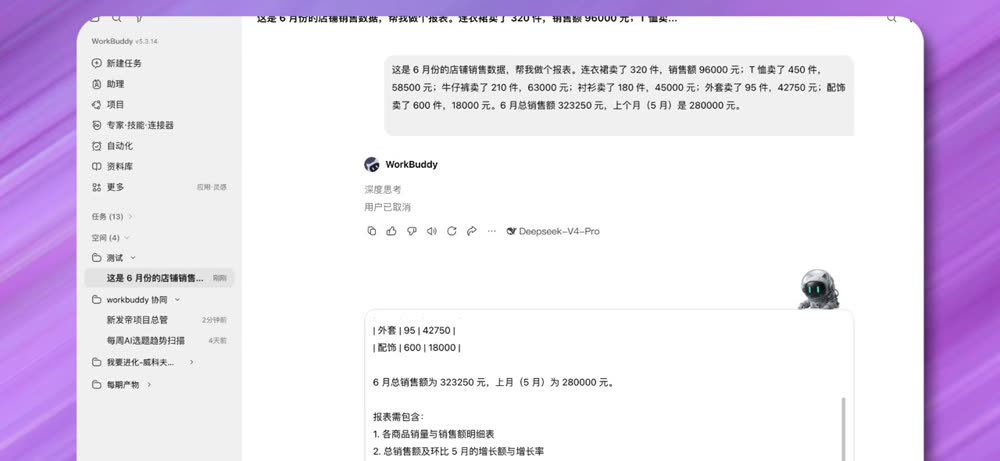
After you enter a prompt in the task chat window, a small star with a plus sign appears to the left of the model selector. Click it, and AI will help you organize, polish, and clarify the task’s content and boundaries.
Often, you know what you want AI to do; you just can’t articulate it. You have the idea in your head, but when you type it, all you get is, “Make me a table.” That’s too vague, so the output naturally falls short. Enhanced Prompts automatically expands that rough request into a detailed, well-structured instruction, spelling out what you need, the format, the level of detail, and what to exclude.
Honestly, this feature essentially removes the prompt-writing barrier. In the past, whether you knew how to use AI depended on whether you could write good prompts. Now, if you can’t, it writes them for you.
9. Overview of the Usage Logic: Two Things + Three Connections
Looking at all of this in pieces, WorkBuddy’s main features really do only two things:
First: let AI reach your world. Your files, your email, and your knowledge base—all of it needs to be accessible before AI can help you get work done. This is handled by Connectors and the Library.
Second: make AI work professionally. For the same task, professional workflows, professional perspectives, and professional work paradigms make the final result better suited to actually delivering a finished piece of work. This is handled by Skills and Experts.
The remaining features connect these two capabilities so you can use them together:
| Feature | Role |
|---|---|
| Workspace | Where your files live |
| Model | Which brain to use |
| Assistant | Handles chat (a lightweight entry point) |
| Automation | Runs repetitive tasks on its own |
Once you understand the whole system, you’ve truly gotten to know the tool and have the basics needed to use it to get work done—and do it well.

10. Is It Worth It? Three Considerations
First, it really is improving quickly. New features seem to arrive almost every week, and combined with the pace of Chinese model development, two months ago it still felt like an intern; now it feels like a seasoned employee.
Second, whether it’s worth topping up. New users receive bonus credits, and you can also claim daily credits; for occasional use, that should be enough. But if you really use it as a work tool, I think the recurring monthly plan at 70 yuan is worth it—the time it saves will quickly exceed the cost. An annual plan has a lower effective monthly price. Check the official website for current pricing.

Third—and most importantly: use it hands-on. An AI Agent is a general-purpose tool, and no tutorial can cover every scenario you may encounter. The best way to learn is to start using it; you’ll develop a feel for it as you go. In that learning process, understanding the tool’s design logic and underlying principles has helped me more than anything else—which is why I’ve broken down this entire system in such detail.
Summary
Returning to the opening point: WorkBuddy is worth using not because of how powerful its models are, but because it has turned “letting AI reach your world” and “making AI work professionally” into a product experience that ordinary people can actually use.
Here’s the shortest path to getting started:
- After installing it, browse the preset examples in all three scenarios to get a feel for what it can do.
- Understand the division between Workspaces and Tasks; always create a Workspace for long-term work.
- Connect Connectors as needed; use one at a time and don’t overdo it.
- Turn any process you’ve repeated more than three times into a Skill.
- If you’re unsure, use the Auto model and start with “Default Permissions.”
- If you can’t write a clear prompt, click that little star.
If you want to run an Agent locally, start with Pi Agent for Beginners: Set It Up on Mac with One Click and Let It Organize Your Research and Write Articles. Its idea is “let the model handle its own connections; the less you manage it, the stronger the AI becomes.” If you’re interested in multi-model orchestration, oh-my-pi Getting Started: 32 Tools + Multi-Model Routing is more relevant. For a fuller look at multi-role collaboration in Expert Teams, see Parallel Multi-Agent Workflows: 5 Agents Working Together on One Big Task.
Are you using WorkBuddy, Codex, or Claude Code now? Tell us in the comments which one you chose and what pitfalls you’ve encountered. If this post was useful, please like and bookmark it, and share it with friends getting started with AI Agents.
Download: WorkBuddy official site workbuddy.cn