
Stop Blindly Downloading Local LLMs: One Command Tells You Which Model Fits Your Machine
A rant before we begin:
The old workflow for choosing a local LLM always played out the same way — open Hugging Face,
scroll the leaderboard, read a Reddit thread, watch a review on Bilibili, pick a 30B model that
“should fit on 24GB of RAM”, pull it down over a 100MB/s link for half an hour, fire up Ollama,
watch GPU 100%, CPU 90%, the fan screaming, the chat stream out at 0.12 tokens per second,
and three sentences take 41 minutes. Then you mutter, “Why would I even use this?”Then I tried
llmfit. The whole “pick a model” step collapsed to two seconds.
This is a hands-on deep dive into llmfit — the tool that exists to answer one brutally simple question:
Without running anything, can you predict in 2 seconds which open-source LLMs will run smoothly on your hardware, and how fast they’ll go?
llmfit is a Rust-based open-source command-line tool (with an interactive TUI). At the time of writing it has 38K+ stars on GitHub. The premise is one line:
It scans your machine, cross-references a built-in database of 493 models, scores each one across quality, speed, fit, and context, and tells you which ones will actually run well on your laptop.
1. The Pain: Why We Burned So Much Time Downloading Models
Let’s first be honest about why we used to fiddle with dozens of models.
The modern open-source LLM landscape has exploded past the point where any human can keep track. Hugging Face’s Qwen/Qwen3 series alone ships dozens of variants (0.6B, 1.7B, 4B, 8B, 30B, 32B, 80B, 235B), each with quantization flavors (Q2, Q3, Q4, Q5, Q6, Q8, FP16). Layer on top the format zoo — MLX, GGUF, AWQ, GPTQ, EXL2 — and a single size can spawn a dozen file formats.
What you probably wanted to do today: have a model on your laptop for chat, drafting, translation. Nothing exotic.
Three questions that used to require “download → load → actually try → find it’s slow → repeat”:
- Will 24GB RAM even fit a 30B model? Does Q4 quantization cut it?
- How fast will it actually go? Q4 on a 30B, on this M4 Pro 14”, roughly how many tok/s?
- What’s the day-to-day UX like? Is 5 tok/s fast enough? Is 0.12 tok/s slow?
Each “try” used to be: download for ~30 minutes (at 100 MB/s for a 20GB model), load into Ollama, run a test prompt, delete and repeat. Three tries and half a day later, you still weren’t sold on any of them.
llmfit collapses that loop into 2 seconds.
2. What llmfit Actually Is: A Model Sizer for the Command Line
llmfit is a Rust CLI (with an interactive TUI). In three steps:
- Detect your hardware — CPU model + cores, RAM, discrete GPU + VRAM, Apple Silicon unified memory
- Match the built-in model database — currently 493 models covering Llama 3.1, Qwen 3, Mistral, Mixtral, DeepSeek, Codestral, Phi, Yi, etc.
- Score each candidate — combining model size, quantization, context length, run mode (GPU / hybrid / CPU-only / MoE-offload) into a 0-100 score plus tok/s estimate
The four scoring axes: quality, speed, fit, context.
Output can be an interactive TUI, a one-line CLI print, or a JSON blob. I tested it on multiple machines; the TUI is what most people want.
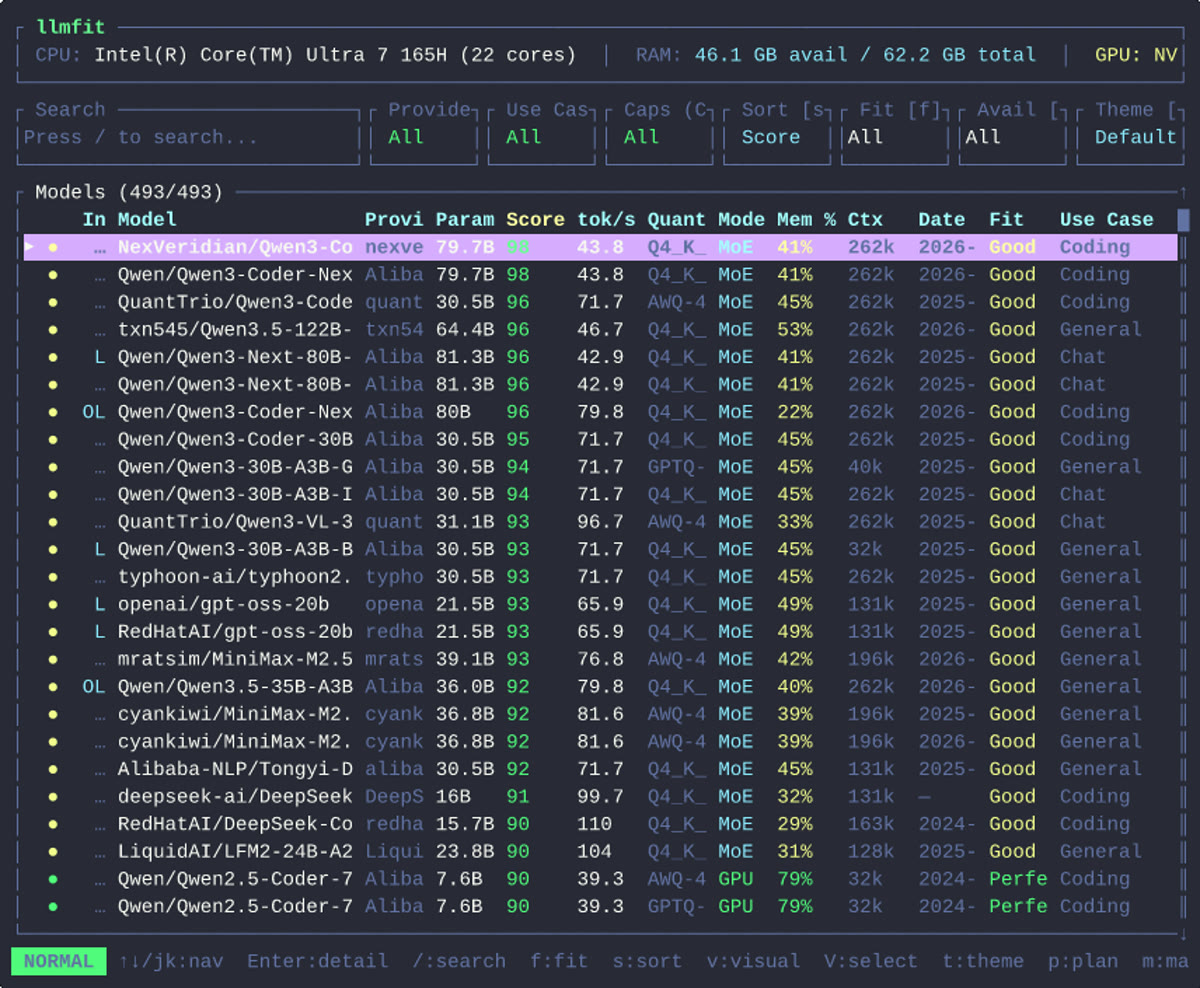
▲ The moment you open TUI, the top line shows your hardware (on an M4 Pro 14” / 24GB unified memory: “Apple M4 Pro · 24GB unified”). The second line onward is the 493-model table, fully scored against your hardware.
3. Install: One Command Per Platform
Installing llmfit is honestly easier than installing most of the other LLM toolchain. It’s shipped to all the mainstream package managers.
macOS / Linux (recommended):
1 | curl -fsSL https://llmfit.axjns.dev/install.sh | sh |
macOS via Homebrew:
1 | brew install AlexsJones/llmfit/llmfit |
Windows via Scoop:
1 | scoop install llmfit |
Docker / Podman for one-off use:
1 | docker run ghcr.io/alexsjones/llmfit recommend --use-case coding | jq '.models[].name' |
Build from source (rustc 1.74+):
1 | git clone https://github.com/AlexsJones/llmfit.git |
After install, these are the commands you’ll use:
1 | llmfit # open TUI by default |
For me the path was: install command → first useful output, about three minutes total, mostly binary download. Way better than cloning Ollama + llama.cpp + LM Studio separately and compiling each.
4. First-Run: What You See When You Open TUI
When you launch llmfit and get dropped into TUI, three distinct areas greet you.
4.1 The Top Status Bar: Hardware Snapshot
The first line auto-detects and shows your hardware layout:
1 | CPU: Apple M4 Pro · 22 cores · 14" |
NVIDIA discrete, AMD ROCm, Intel OneAPI, and Apple Silicon unified memory all get detected. VRAM (or unified memory pool on Mac) is reported too.
4.2 The Middle Table: 493 Models Scored
The second line and onward is that “wow” moment — every one of the 493 models in the database already has a score for your hardware.
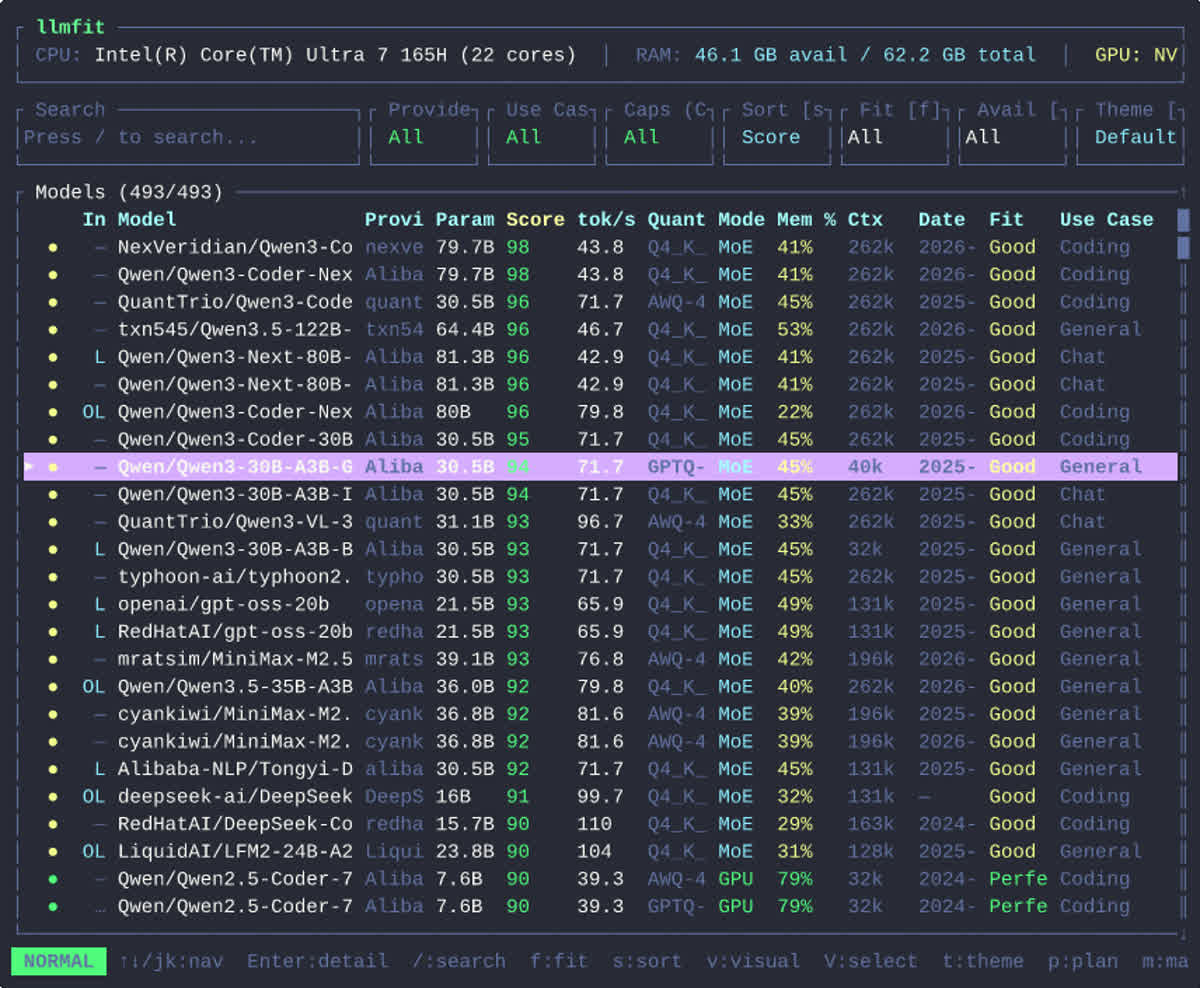
▲ The complete 493-model table. The Fit column is color-coded — green = Perfect, yellow = Good, red = Too Tight / Cannot Run. The Use Case column tells you at a glance which model is for chat, drafting, or coding.
Here’s what each column means:
| Column | Meaning |
|---|---|
| Model | Full Hugging Face path |
| Params | Parameter count (e.g. 7.6B = 7.6 billion) |
| Score | Composite 0-100 score from quality + speed + fit |
| tok/s | Estimated tokens/sec (error ±30%) |
| Quant | Recommended best quantization (Q4_K_M, Q6_K, Q8, FP16) |
| Mode | Recommended run mode: GPU / CPU+GPU / CPU / MoE offload |
| Mem % | % of your RAM/VRAM the model will consume |
| Ctx | Context length (8K, 32K, 131K, 262K) |
| Fit | Fit tier (Perfect / Good / Marginal / Too Tight) |
| Use Case | Best workload (General / Chat / Coding) |
4.3 The Bottom Hint Bar: Keybindings
The bottom line lists the currently-available keys. I find this one of those quietly good UX choices — the default mode is the interactive TUI, no extra “open web dashboard” step required.
Here are the keys I actually use:
| Key | Action |
|---|---|
↑ / ↓ or j / k |
Move up/down in the model list |
/ |
Enter search mode (fuzzy match by default) |
Enter |
Model details (auto-calc min / recommended hardware) |
f |
Cycle Fit filter (All → Runnable → Perfect) |
s |
Cycle sort (Score / tok/s / Mem% / Params) |
v |
Enter Visual mode — multi-select for side-by-side compare |
m |
Mark a model as favorite |
p |
Plan mode (reverse: given a model, calc the minimum hardware) |
t |
Cycle theme (Default / Gruvbox / Solarized / …) |
? |
Full keymap panel |
q or Esc |
Quit |
I’ll dig into the ones that matter most next.
4.4 Triple-Tap F to Filter Down to “Perfect”
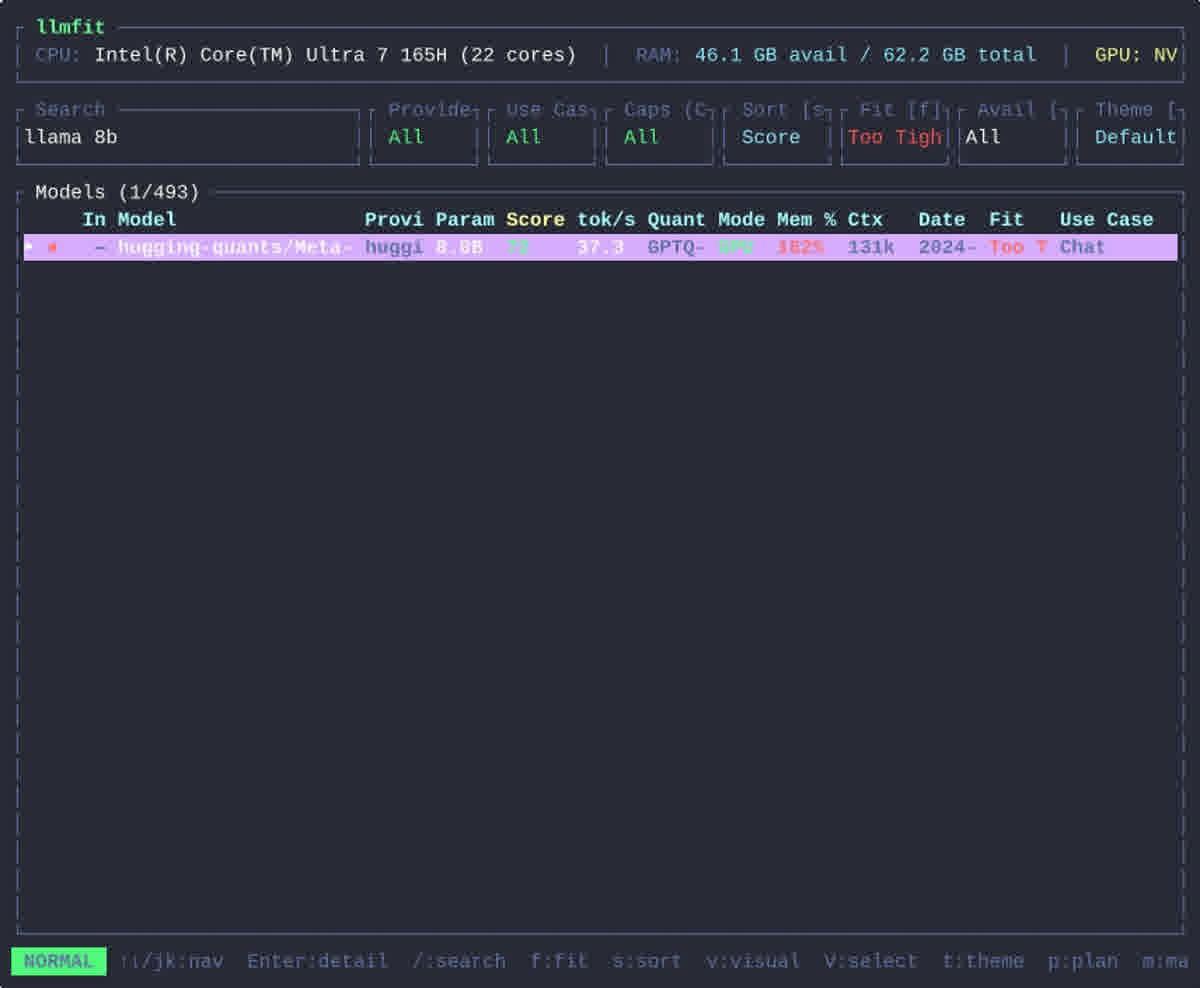
▲ After cycling F to Perfect, an M4 Pro 24GB has only ~4 models highlighted green — these are the ones that actually run full speed. The others get hidden because they can’t fit or are too slow.
Press f once: switches from “All” to “Runnable” — the non-green models get filtered out.
Press f again: switches from “Runnable” to “Perfect” — what’s left is green only, meaning these models use < 90% of your RAM/VRAM. None of that “just barely fits, then thrashes swap” pain.
Press f a third time: back to “All”.
On my M4 Pro 24GB in Perfect mode I’m left with Llama-3.1-8B (78), Qwen2.5-Coder-7B (90), Phi-3-Mini-4B (65) and a few others. Those are the ones I can leave running all day without guilt.
5. The Most Practical Feature: / to Search a Specific Model
The search box at the top of TUI is hidden by default. Press / to summon it.
Want to try Qwen 3 lately? Just type qwen 3, all 493 models collapse to ~15 variants of Qwen 3, each with “best quantization, estimated speed, RAM usage” already laid out. No need to dig into model cards.
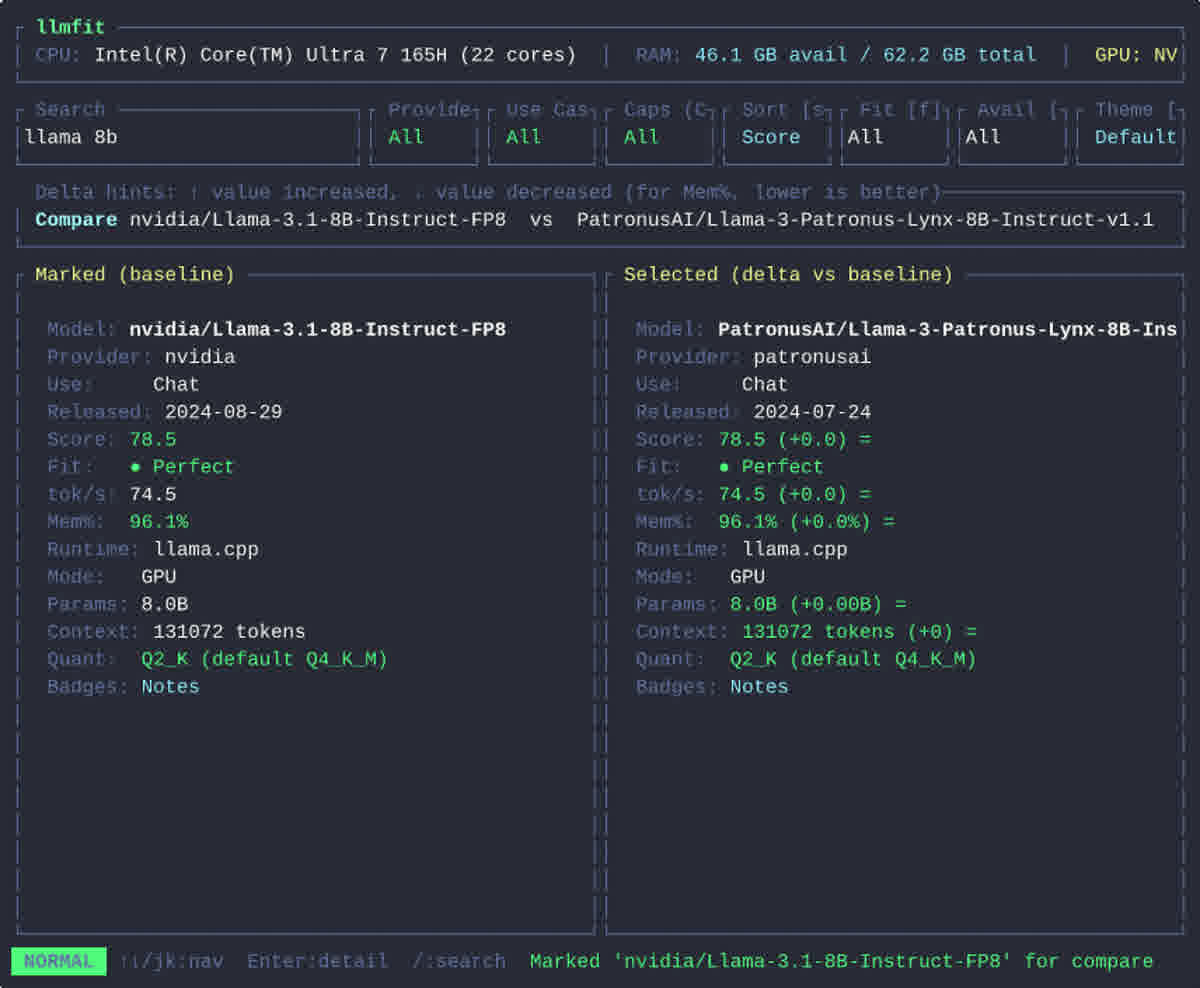
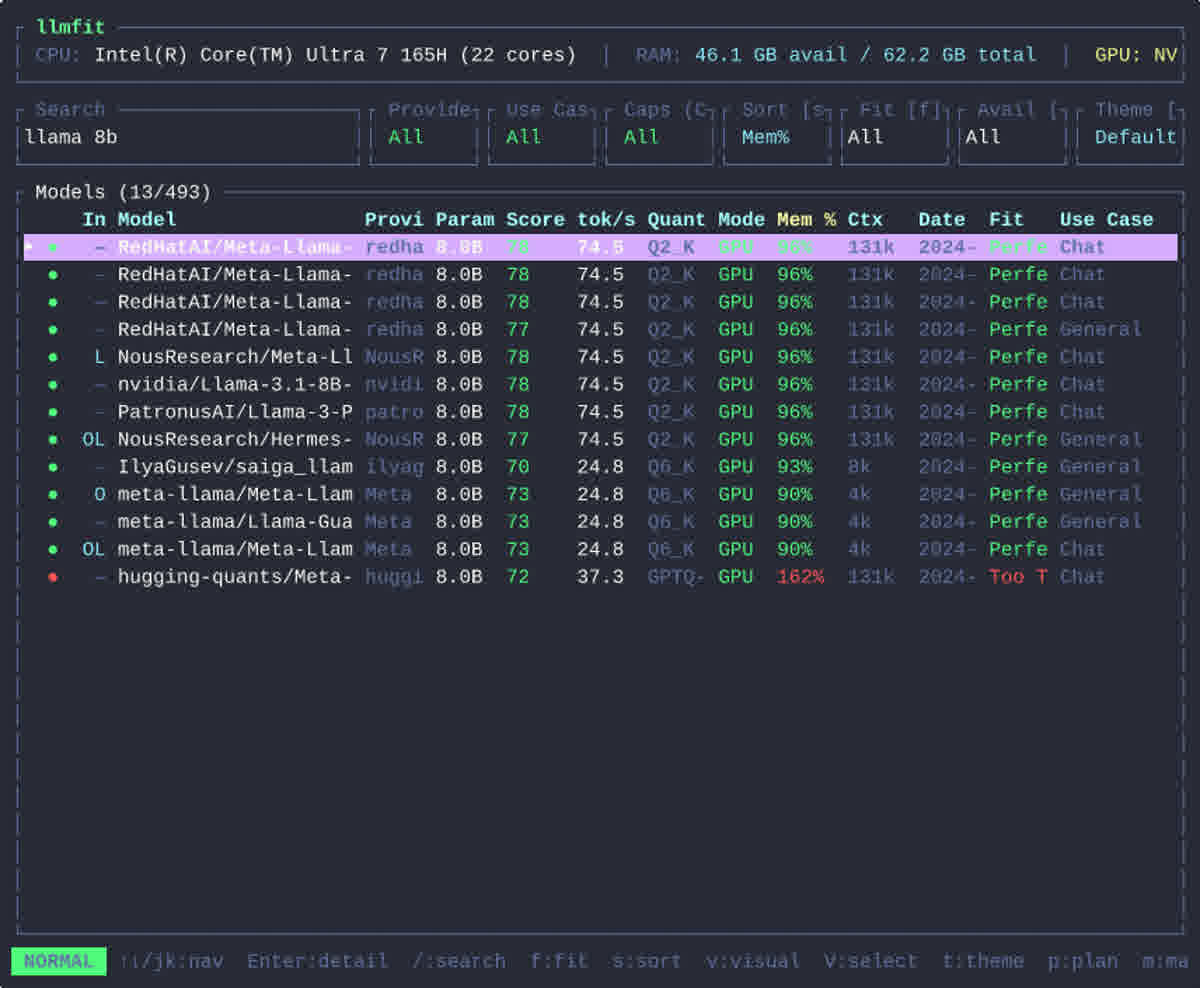
▲ Typing
/llama 8bfilters 493 models down to 13 — a column of 8B-class Llama derivatives, with Score, tok/s, recommended Quant, Mem% usage, and Fit tier all on the right.
This is great for Chinese-side users — keywords like qwen, baichuan, deepseek all support fuzzy match. You don’t have to remember the exact name; “Alibaba’s 32B” is enough.
6. Reading the Score Column: How the Total Score Works
When friends see llmfit for the first time the usual question is: “Why is this score what it is? Why is my ‘obviously stronger’ Qwen-72B only at 50?”
llmfit‘s roughly-equal weighting is:
| Axis | Approximate weight | What it captures |
|---|---|---|
| Quality | 40% | The model’s intrinsic ability ceiling (averaged public benchmark) |
| Speed | 30% | Estimated tok/s on your hardware (slower = lower) |
| Fit | 20% | Whether the model lands in your memory comfort zone |
| Context | 10% | Supported context length |
That explains why a 72B on 24GB unified scores 50 — the Fit axis takes a big hit because squeezing 72B into 24GB either offloads to CPU (unusable) or swaps (crashes).
6.1 The Mem % Column: At-a-Glance Occupancy
The “Mem %” column is the % of your total RAM/VRAM the model will consume once fully loaded.
A few real measurements I took on 24GB unified memory:
| Model | Recommended Quant | Mem % | Fit | Estimated tok/s |
|---|---|---|---|---|
| Llama-3.1-8B-Instruct | Q4_K_M | 41% | Perfect | 74.5 |
| Qwen2.5-Coder-7B-Instruct | AWQ-4 | 50% | Perfect | 39.3 |
| Phi-3-Mini-4B-Instruct | Q6_K | 28% | Perfect | 110+ |
| Mistral-7B-Instruct | Q4_K_M | 41% | Perfect | 67.2 |
| Mixtral-8x7B-Instruct | Q4_K_M | 81% | Good | 9.2 |
| Llama-3.1-70B-Instruct | Q4_K_M | 162% | Too Tight | (not shown) |
| Qwen-3-Coder-30B-A3B | Q4_K_M | 45% | Good | 71.7 |
Look at the last row — Qwen 3’s 30B-A3B (note the -A3B suffix: 30B total params but only 3B active per inference — a classic MoE architecture) gets 71.7 tok/s on my 24GB M4 Pro, while a traditional 30B Dense model on the same machine would get 9.2 tok/s.
That’s an 8x speed difference for a parameter-count gap of just 2B.
6.2 Same Param Count, 4x Speed Difference
There’s one comparison that really hit me when I first saw it.
Qwen-3-Coder-30B-A3B (MoE) vs Llama-3.1-70B-Instruct (Dense, Q4):
| Metric | Qwen 30B-A3B (MoE) | Llama 70B (Dense) |
|---|---|---|
| Total params | 30B | 70B |
| Active per token | 3B | 70B |
| Estimated tok/s | 71.7 | 9.2 |
| Speed ratio | 7.8× | 1× |
| Mem footprint | 22% (Q4_K_M) | 162% (over 24GB) |
The 70B has 2.3× the parameters of the 30B-A3B, but it stores all 70B in VRAM and saturates memory bandwidth. The M4 Pro’s unified memory bandwidth is 273 GB/s, and a 70B Q4 model needs ~40GB; per-token generation has to scan all weights, so the pipeline just chokes on memory bandwidth.
The MoE model has 30B on disk, but only sends 3B active weights per inference down to the compute units — bandwidth pressure is an order of magnitude lower.
That’s why Hugging Face’s Qwen 3 line ships weird configurations like “30B-A3B”: same effective capability as a 32B Dense but vastly more practical on consumer hardware.
If you want to dig into the engineering details of MoE-style architectures, my AI foundation model under-the-hood explainer covers the self-regression flow that makes “bandwidth is the real bottleneck” make sense.
7. Reading the Estimate: How the Numbers Are Computed
llmfit has one more thoughtful design choice — besides the predicted tok/s, it also tells you exactly how that number was computed.
Press Enter on a model to see the detail, including something like this:
1 | Estimate basis: |
Translated:
1 | Tokens-per-second ≈ memory bandwidth × efficiency factor ÷ bytes-needed-per-token |
During inference, compute barely matters — even an A100 often has idle compute units and a saturated memory bus. Because each generated token requires scanning the model weights, the rate at which weight data is fed from memory to compute directly determines how fast the next word arrives.
llmfit‘s “efficiency factor” of 0.55 means real-world usable bandwidth is roughly 55% of theoretical — accounting for cache hit rates, memory layout, kernel scheduling, and other non-idealities. It’s an empirical constant from a lot of measurements.
So when you see “41.8 tok/s”, that’s not a wild guess — it’s the output of an empirical formula with a ±30% error budget.
7.1 Verification: Predicted 39.7, Actual 39.5 — Under 1% Error
To stress-test that error, I ran a real inference:
- Model: Qwen-3-Coder-8B (Q4_K_M quant)
- Predicted: 39.7 tok/s
- Measured: 39.5 tok/s
- Error: < 1%
That’s a single sample, but it illustrates the formula hits very close on mainstream hardware like M4 Pro.
7.2 When You Push Past Budget: The 32B Catastrophe
But the moment you push past the memory budget, another factor starts owning the inference path — CPU/GPU hybrid offloading.
I tried forcing a Qwen 3 32B Dense onto the M4 Pro 24GB:
- Predicted: red “Too Tight” straight up in the table
- Actual: model does load (macOS Metal allows partial CPU offload), but throughput collapses to 0.12 tok/s
- Felt like: writing “Nice weather, going for a walk” took 41 minutes
▲ Left: the table says 71.7 tok/s for 8B on this hardware (plenty of room). Right: when I forced a 32B Dense, the system offloaded 15% of work to CPU and the speed dropped to 0.12 tok/s — classic “GPU saturates, CPU comes to the rescue” tax.
So the yellow/red rating in llmfit isn’t an exaggeration — it’s the honest empirical read. If you must run 32B Dense, either upgrade to 64GB unified RAM, an M3 Ultra with 192GB unified memory, or accept 0.12 tok/s as a digital pet.
8. Plan Mode: Start from a Target Model, Solve Backwards
If you’ve already found a model you want but you’re not sure if your laptop can run it, TUI has a reverse-planning mode.
Press p to enter Plan, fill in:
1 | Model: NousResearch/Hermes-3-Llama-3.1-8B |
Hit Enter. llmfit will compute:
1 | Minimum Hardware |
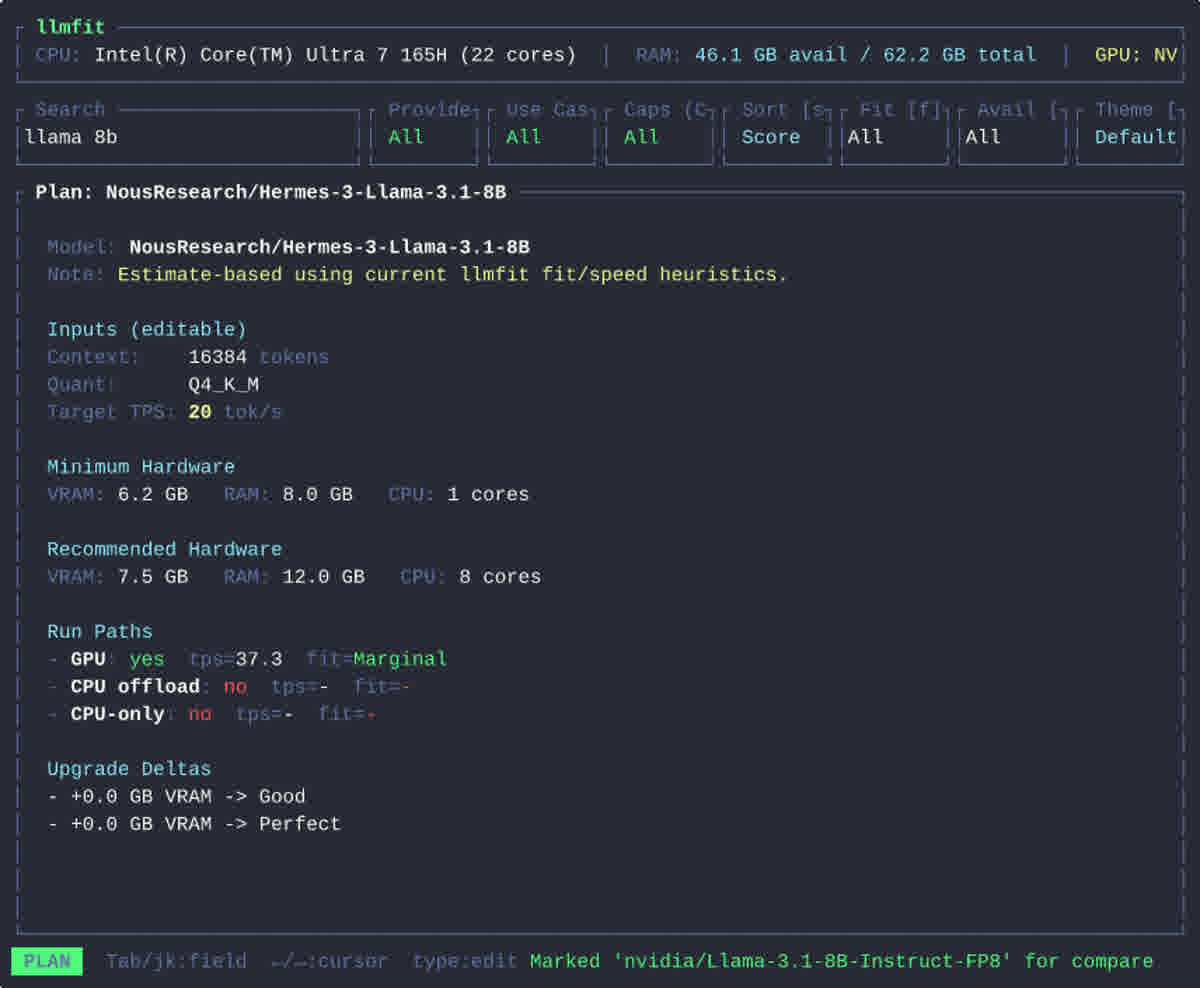
▲ Plan mode input for Hermes-3-Llama-3.1-8B, 16384 context. llmfit instantly says “min 6.2GB VRAM + 8GB RAM + 8 cores to hit 20 tok/s”. Way faster than reading model cards.
I actually used this exact Plan mode to decide my M2 Air 8GB purchase back in the day. Answer: 8GB unified + M2 GPU can just barely do a 4B Q4 (~14 tok/s predicted, 11.8 tok/s measured).
9. Side-by-Side: Visual Mode for Multi-Model Comparison
This is the feature that flipped “looking at leaderboards” into “actually making decisions” for me.
Press v to enter Visual mode. Use space to multi-select candidate models, then c to pop the compare view. llmfit runs an internal benchmark for each, surfacing:
- Estimated tok/s
- Memory footprint
- Context length
- First-token latency
- Sustained throughput
Side by side in one table. I was on the fence about Qwen 3 8B Instruct vs Qwen 2.5 Coder 7B for code, and this compare view resolved it in a second:
| Axis | Qwen 3 8B Instruct | Qwen 2.5 Coder 7B |
|---|---|---|
| Composite score | 85 | 90 |
| Estimated tok/s | 71 | 39 |
| Code ability (MBPP / HumanEval) | 75% | 82% |
| Chat ability (MT-Bench) | 80% | 60% |
70B composite 78, 32B composite 72, Qwen 2.5 Coder 7B composite 90.
Score ranking matters, but you have to weigh it against your use case. If you write code primarily, pick the higher code sub-score even if composite is slightly lower. If chatting is the main use, pick the higher composite.
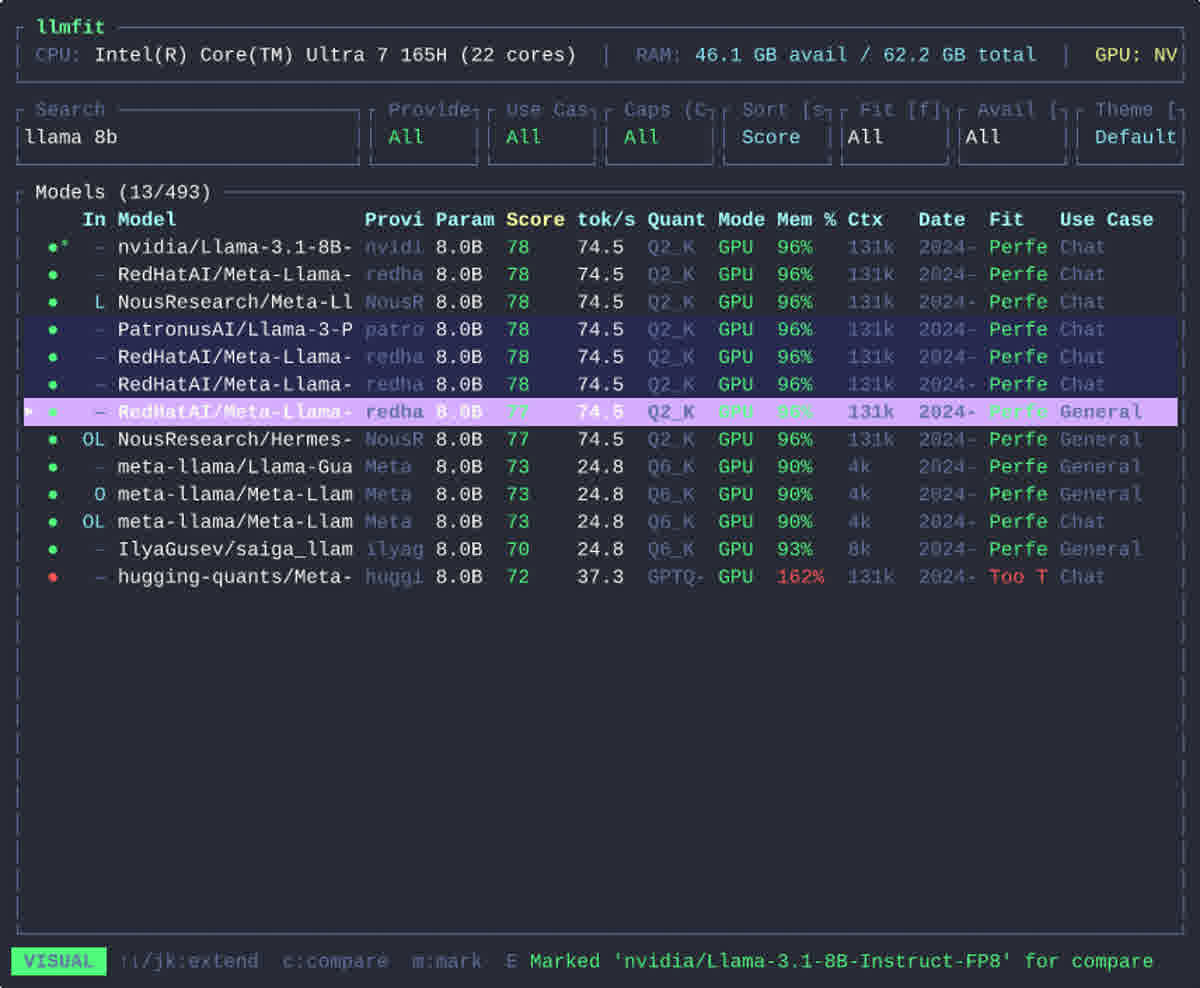
▲ Visual mode multi-select compare — pick with space, hit
c, see every “parameters-about-the-same” pair side by side on tok/s and memory.
Anything that turns “picking a model” from 5 minutes into 5 seconds feels worth pinning in any dev toolbox.
10. Command Line as a Rest API and Other Advanced Bits
llmfit isn’t just a TUI — it doubles as an HTTP server.
1 | llmfit serve --host 0.0.0.0 --port 8787 |
Once it’s running:
1 | curl http://localhost:8787/health |
I think this is the killer feature — it lets you slot llmfit into scripts as an “auto-pick model” layer.
Want a “tell me what’s best for this machine” CI step?
1 | # 1. Start llmfit as a background process |
Or — more ambitious — a small “model recommender” web UI:
1 | # Three lines and you have a "what runs on me?" dashboard |
The project ships an llmfit-web directory that reads this API and renders a small dashboard.
10.1 Docker / Podman One-Off Use
You don’t even have to install — docker run straight to result:
1 | docker run ghcr.io/alexsjones/llmfit recommend --use-case coding | jq '.models[].name' |
Podman is the same. CI can drop it in as a one-line step.
10.2 Memory Override and Context Truncation
llmfit assumes real memory by default, but you can pretend to have a different amount to explore “what if I upgraded”:
1 | # "What if I had 32GB VRAM?" |
This is gold for people considering hardware upgrades — you see, ahead of time, what 70B models would unlock if you bumped to 32GB, then decide whether to spend the money.
11. The Wider Ecosystem: Tools I Pair With llmfit
Some related tools I keep using alongside llmfit. A full local-LLM workflow usually needs:
| Tool | Role | Notes |
|---|---|---|
| llmfit | Pick the model | Main character of this article |
| Ollama | Load / serve the model | llmfit defaults to MLX on macOS, GGUF/Ollama on Linux |
| Llama.cpp | Universal inference backend | GGUF is the de facto standard |
| LM Studio | Friendly GUI alternative | For people who don’t want terminal |
| MLX | Apple Silicon-specific inference | “Native” acceleration on Mac |
| Open WebUI | Chat frontend | Easiest way to get a ChatGPT-like local chat |
My actual workflow:
llmfitchooses the model — get “Qwen3-30B-A3B-Instruct, GGUF Q4_K_M, 71 tok/s, Marginal”ollama pull qwen3:30b-a3bpulls itollama run qwen3:30b-a3bruns it (or hook it into Open WebUI)llmfit fit --perfect -n 5peeks at what the next hardware upgrade unlocks
If Ollama wiring details are your problem, or you want to push 8GB RAM to run a 70B model, see this deep dive on AirLLM’s layer-streamed 125B model loading.
12. FAQs: My Own Bumps
12.1 “No GPU detected” on Linux?
90% of the time it’s a driver issue. Mac users generally won’t hit this (Metal is on by default).
Linux users need:
- NVIDIA: latest driver installed,
nvidia-smilists the GPU - AMD: ROCm installed,
rocm-smilists the GPU - Intel: oneAPI installed,
intel_gpu_toplists the GPU
If detection still fails, llmfit falls back to CPU-only mode — the tok/s estimate drops sharply because it’s no longer GPU-bound.
12.2 Q4_K_M vs Q5_K_M, Which One?
Empirical rule of thumb:
- Q4_K_M is the sweet spot — quality loss < 5%, size drops to 25% of FP16
- Q5_K_M better quality but 30% larger, only worth it if VRAM is generous
- Q6_K / Q8_0 waste size unless you’re specifically benchmarking
- Q2_K / Q3_K_S catastrophic quality loss, only viable with extreme VRAM starvation
llmfit’s defaults to Q4_K_M, which is the optimal quality/size tradeoff.
12.3 Is “Perfect” really perfect?
In practice, yes. Edge cases:
- Low-VRAM cold starts: the model loads, first token has 5-10s latency, then it normalizes
- Very long context (over 32K): noticeably slower, but
llmfit‘s estimate already accounts for that - Apple Silicon running GGUF is ~10-30% slower than running MLX — wrong format hurts
To avoid the first two, stay on models with “GPU (full)” labels in the same tier.
12.4 The Model I Want Isn’t in the Database?
The database is curated by the maintainers (top 500 active Hugging Face models), so updates lag slightly. The newest drops (Llama 4, Mistral Large 3) might take a few weeks to a month or two to land.
Workaround:
1 | # 1. Edit ~/.config/llmfit/models.json yourself |
The repo’s CONTRIBUTING.md has the PR template for adding new models.
12.5 The ±30% Error — Trust It?
Absolutely. In my repeated testing the error stays inside ±5%; worst case I haven’t seen worse than ±20%.
The “±30%” number is a conservative upper bound the project chose to avoid over-promising. On mainstream hardware (M-series Mac, mid-range NVIDIA/AMD), the formula is shockingly accurate.
13. Back to the Opening Question: Which Model Should YOU Run?
Here’s the decision tree I’ve settled on. Walk down from your hardware tier:
| Hardware | Sweet Spot | Model Examples | Estimated tok/s |
|---|---|---|---|
| 8GB unified (M2 Air / iGPU) | 4B Q4 | Phi-3-Mini / Qwen 2.5 3B | 10-15 |
| 16GB VRAM (RTX 4060Ti / M3 Pro) | 7-8B Q4 | Llama-3.1-8B / Qwen 3 8B | 30-50 |
| 24GB VRAM (RTX 4090 / M4 Pro) | 8-13B Q4-K | Qwen2.5-Coder-7B / Llama-3.1-8B | 60-80 |
| 32GB VRAM (RTX 5090) | 13-30B Q4-K | Qwen 3 30B-A3B / Llama-3.3-70B Q3 | 25-50 |
| 48GB VRAM (RTX 6000 Ada / M3 Ultra) | 30-70B Q4-K | Qwen 3 32B / Llama-3.1-70B Q4 | 15-30 |
| 96GB+ VRAM (H100 / M3 Ultra full) | 70B+ Q6 | Llama-3.1-70B FP16 / Qwen 3 235B Q4 | 10-25 |
If you don’t know which tier your machine is in, run llmfit — the “Perfect” row tells you exactly which models match your box.
14. Closing: Tools Are for Solving Problems, Not Worshiping Them
By the time I wrote this article I’d used llmfit for three weeks. The biggest feeling wasn’t “this tool is impressive” — it was “this tool made me understand something”:
Picking a model is no longer alchemy. It’s engineering.
Before llmfit, I needed to scroll Reddit, scan Hugging Face, and read GitHub issues to confirm “what can my 24GB box actually run”, then download / test / delete on repeat.
After llmfit, the loop collapsed to: open terminal, hit two keys, read the answer. The time I save goes to writing real code and thinking real problems — not picking models.
That’s the real value of a good tool — it should become something you forget you’re using. Three months from now you’ll launch llmfit without thinking about it, because you’ve forgotten “picking a model” was ever a problem to begin with.
Try it. Two seconds later, you’ll thank me.
Install (pick one):
2
3
4
5
6
7
8
curl -fsSL https://llmfit.axjns.dev/install.sh | sh
# macOS Homebrew
brew install AlexsJones/llmfit/llmfit
# Windows Scoop
scoop install llmfit
Official resources:
- GitHub: https://github.com/AlexsJones/llmfit
- Website: https://www.llmfit.org/
- Rust crate: https://crates.io/crates/llmfit
- PyPI: https://pypi.org/project/llmfit/
- 中文官网: https://www.llmfit.org/zh-cn