
Herdr Multi-Agent Collaboration in Practice: 5 AI Coding Agents Building a Subscription Management WebApp in Parallel
Why You Need a “Multi-Agent Workbench”
The real pain only shows up after you’ve installed Claude Code, Codex, OpenCode, and Pi Agent: you have to keep flipping between multiple terminal panes just to know who’s working, who’s waiting for your approval, and who’s done. Stack a few windows on top of each other and their state is a black box; switch away mid-task and you’re afraid of missing some critical prompt from an Agent.
Herdr (GitHub) is built for exactly this scenario — it runs Agents in real terminal Panes and shows working / blocked / done status in the same interface, making multi-agent development truly observable, resumable, and schedulable. For its architecture, comparison with tmux / Zellij, installation, and single-Agent onboarding, see the earlier write-up: Herdr Terminal Workspace Manager: A Runtime Built for AI Coding Agents. This post focuses on the practical workflow of parallel multi-agent collaboration.
1. Concepts First: Workspace / Tab / Pane / Agent
Herdr has only four core concepts. Once you internalize this mapping table, the whole product makes sense:
| Herdr Concept | Maps to in a Code Project | Quantity |
|---|---|---|
| Workspace | The entire codebase | A Herdr instance can host 1~N of them |
| Tab | A specific task | 1~N per Workspace |
| Pane | An Agent session | 1~N per Tab, split horizontally or vertically |
| Agent | The intelligence running in the Pane (Codex / Pi / Claude Code…) | One per Pane |
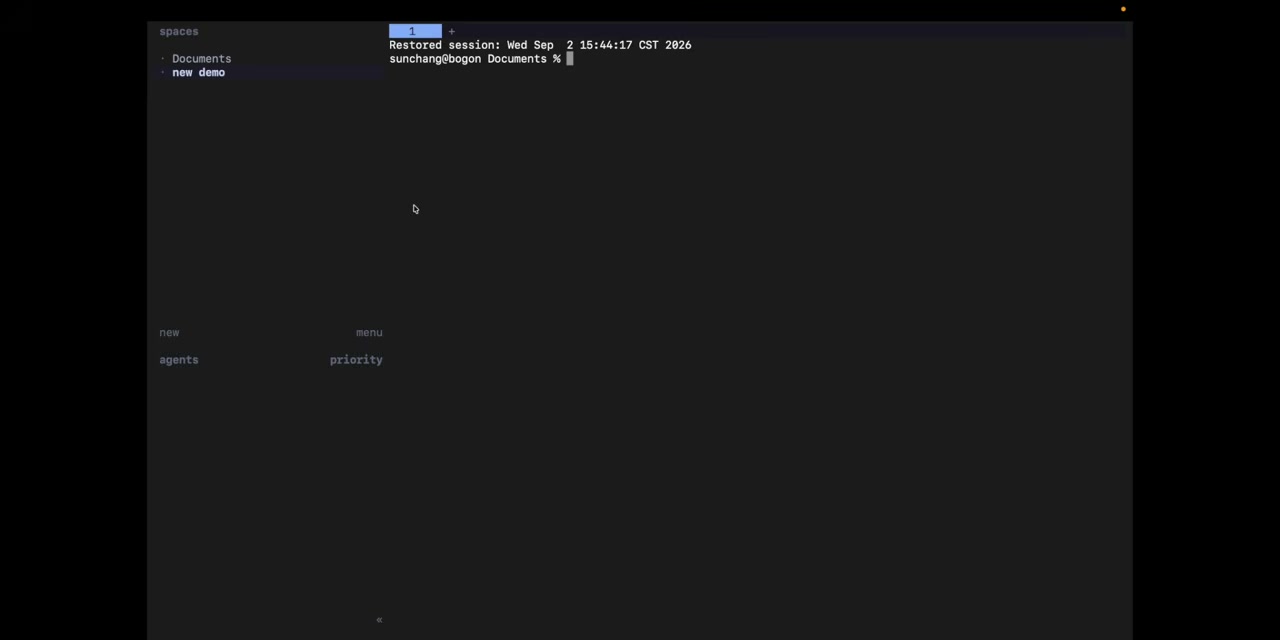
So in Herdr’s default interface, the left sidebar is the Workspace + Agent status aggregate view, and the right side is the operation area:
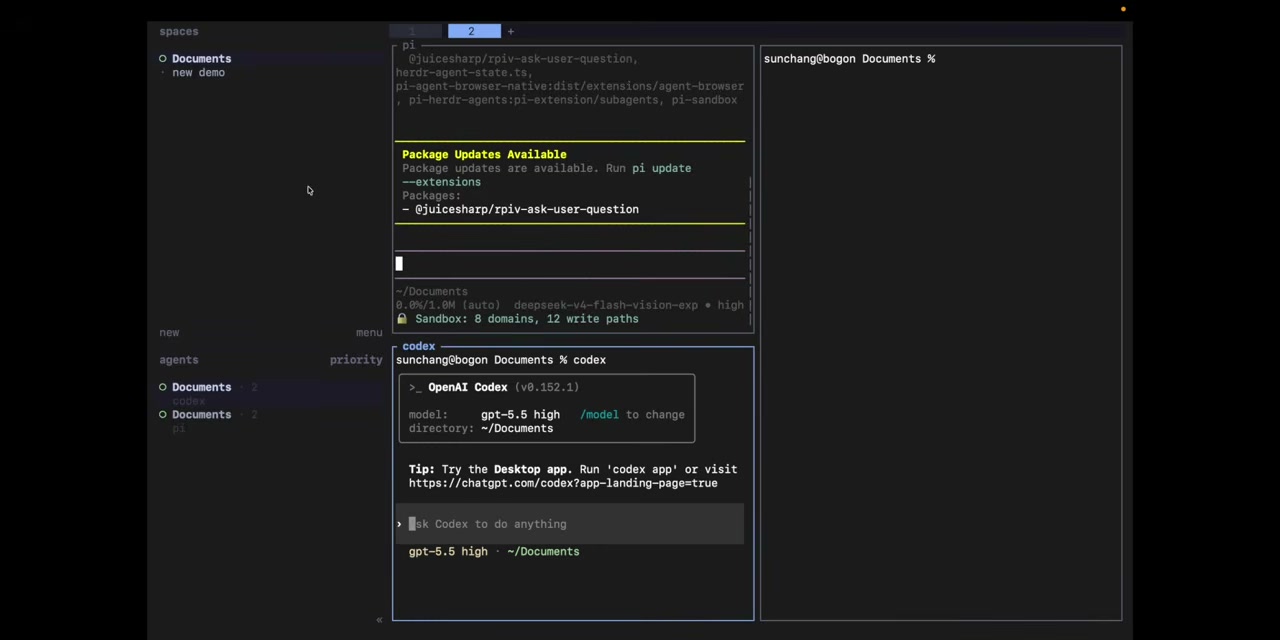
A single Tab can run multiple Panes simultaneously. In the image below: Pi Agent in the top-left, OpenAI Codex in the bottom-left, an empty terminal on the right — three real terminal processes running in parallel:
Tip: Right-click a Pane border → Rename to give each Pane a recognizable name (e.g.
Architect / UI / Logic / Test / Integrator). The sidebar will automatically group by name and sort by status (hollow = idle, yellow = running, red = blocked), so you can see everything across workspaces at a glance.
2. UI and Interaction: Friendly to Both Mouse and Keyboard
Herdr treats “mouse users” and “keyboard users” as first-class citizens — you never have to pick one.
2.1 The Mouse Can Do Everything
Create a Workspace, switch Tabs, split the screen, focus a Pane, resize borders, copy selected text — all doable with the mouse. Selecting text auto-copies it to the clipboard — no Ctrl+C needed. Ctrl + click opens links inside a Pane (supports OSC 8, http://, https://, including links truncated by newlines).
2.2 Keyboard Uses tmux-Style Prefixes
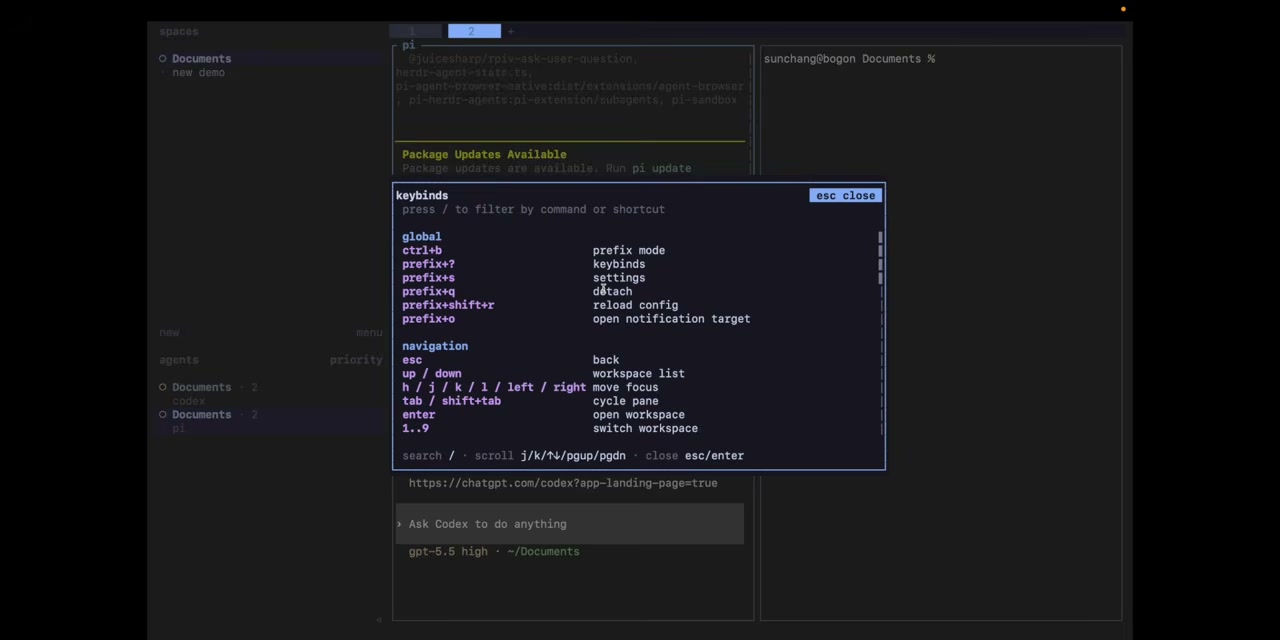
Vim users get a tmux-style Ctrl+B prefix:
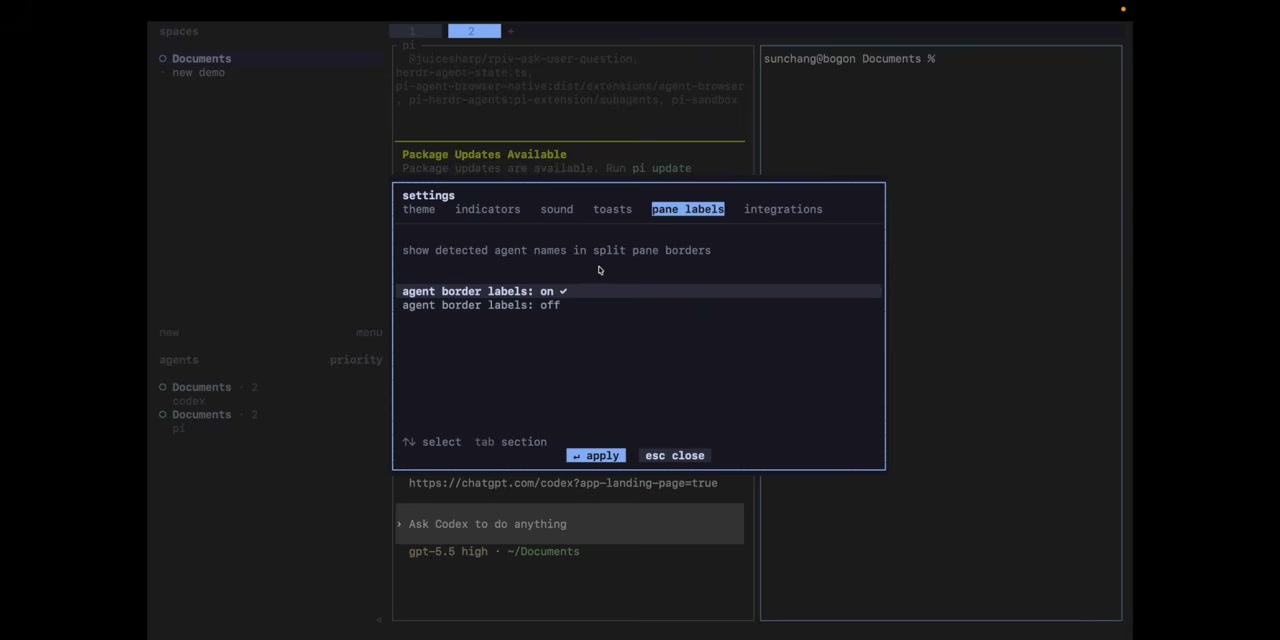
After pressing Ctrl+B to enter prefix mode, common actions:
| Action | Keybinding |
|---|---|
| Split vertically | prefix + v |
| Split horizontally | prefix + - |
| New Tab | prefix + c |
| Next / previous Tab | prefix + n / prefix + p |
| Workspace navigation | prefix + w |
| New Workspace | prefix + shift + n |
| Detach client | prefix + q |
| View all bindings | prefix + ? |
2.3 Status Indicators for a Global View
The dots in the sidebar are the soul of Herdr. Color meanings:
| Status | Color | Meaning |
|---|---|---|
| idle | Hollow circle | Done / waiting, already viewed |
| working | Solid yellow | Currently running |
| blocked | Solid red | Needs your approval or an answer |
| done | Solid green | Done but you haven’t viewed it yet |
In Settings → Indicators, you can also switch between solid / hollow / half-circle styles. Combined with Pane labels, you can instantly tell which Agent is waiting on you.
2.4 Integrations: First-Time Setup
Herdr doesn’t ship with status hooks for every Agent out of the box. The first time you launch a given Agent, go to Menu → Integrations, find the Agent with a + → click the plus → it auto-pulls and installs the corresponding plugin → the status turns green with a checkmark. After that, the sidebar can accurately surface blocked / done signals.
3. Two Killer Features: Session Persistence + Remote Sessions
3.1 Quit and Come Back — Conversations Don’t Get Lost
Herdr is a client-server architecture: Agents run in real terminal processes on the backend Server; the UI client is just a rendering layer. Press prefix + q to exit the client, and the Server and all Agents keep running. Next time you run herdr to reconnect, your original layout, status, and Panes are fully restored.
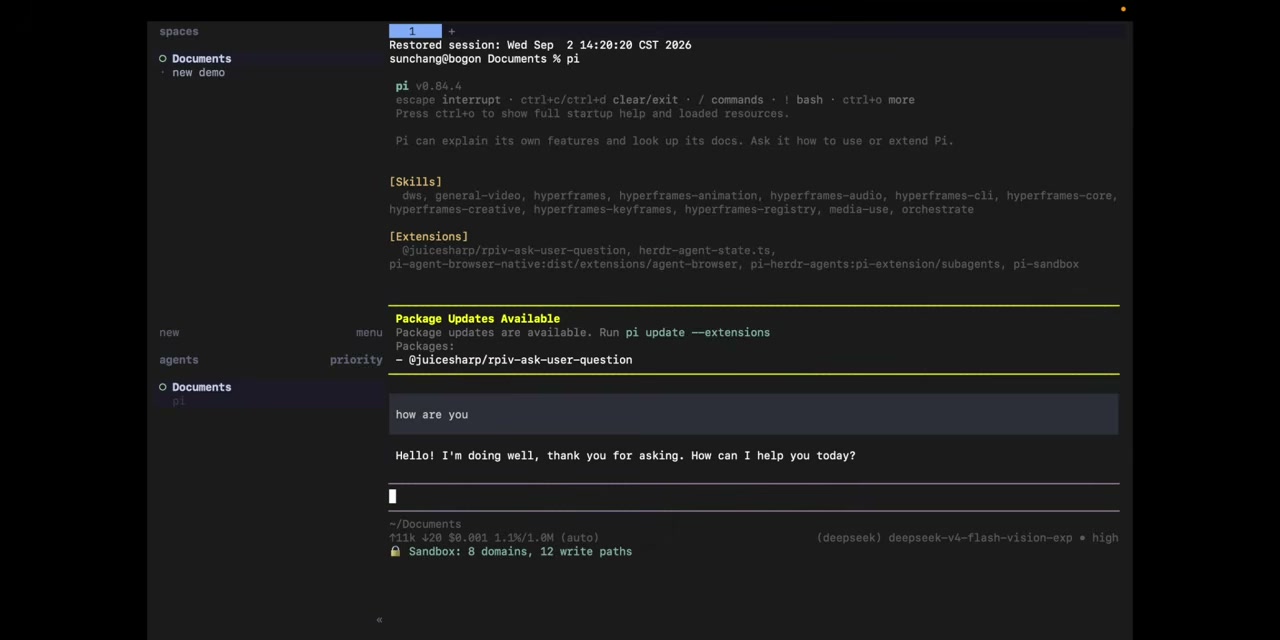
Note: After a server/machine reboot, Herdr will restore the layout, but the original processes don’t survive across reboots. Long-running tasks need the Agent’s own session-resume capability (Pi, Claude Code, etc. all support this).
3.2 Remote Sessions: One Window, Multiple Machines
1 | herdr remote <user>@<host> |
This command attaches a remote SSH host to the current Herdr instance, and any Agents running remotely get merged into the sidebar. Install any SSH client on your phone, connect, and the TUI adapts to the narrow screen — essentially a free phone-side monitor.
4. Hands-On Demo: 5 Agents Building a Subscription WebApp in Parallel
Here’s a complete multi-agent collaboration demo: the goal is to use 5 Agents in the same Workspace to build, in parallel, a subscription expense management WebApp.
4.1 Role Assignment
| Agent | Task | Model |
|---|---|---|
| Architect | Unify data structures, API contracts, test boundaries | OpenAI Codex (gpt-5.5 high) |
| UI Agent | Implement the interface and interactions | Pi Agent |
| Logic Agent | Implement data models, business logic, storage | Pi Agent |
| Test Agent | Write and run tests, cover core modules | Pi Agent |
| Integrator | Spin up the service, do end-to-end integration | OpenAI Codex |
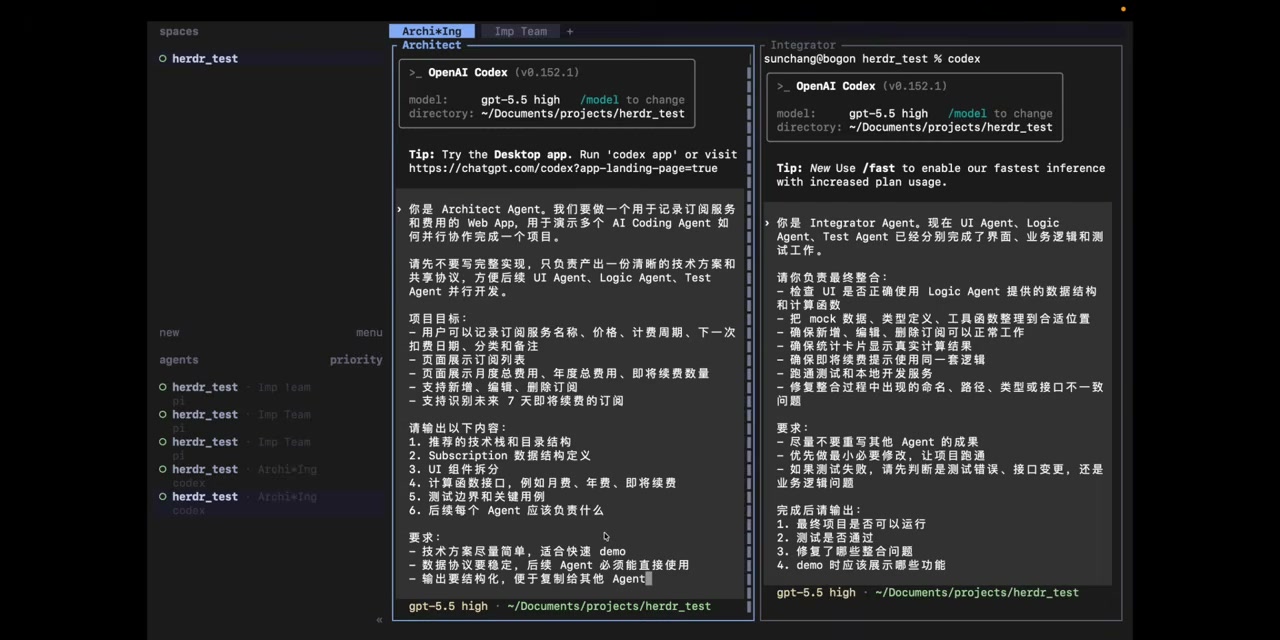
The Workspace is split into two Tabs:
- Tab 1 (Architecting): Architect + Integrator side by side
- Tab 2 (Imp Team): UI / Logic / Test — three Panes in a horizontal/vertical layout
After right-clicking Rename on each Pane, the sidebar groups by name:
4.2 Phase 1: Architect Lays Down the Protocol First
Key principle: Don’t let UI / Logic / Test start in parallel directly — you must first have the Architect produce a shared protocol (data schema, module boundaries, interface signatures, test boundaries). Otherwise three Agents will each do their own thing, and integration will inevitably fall apart.
In the Architect Pane, give this prompt:
You are an Architect Agent. We’re building a Web App to track subscription services and expenses. Based on my understanding of subscription apps, first unify the interface spec:
- Data model: Subscription (name, price, currency, billing cycle, next charge date, auto-renew, notes)
- APIs: list / add / edit / delete / stats
- Storage: localStorage (array form)
- UI components: subscription list, add/edit form, stats cards
- Type file:
types/subscription.ts, imported everywhereOnly produce the architecture contract document — no implementation code.
Once Architect is done, jump to the Imp Team Tab and have UI / Logic / Test start parallel implementation against the same contract.
4.3 Phase 2: UI / Logic / Test in Parallel
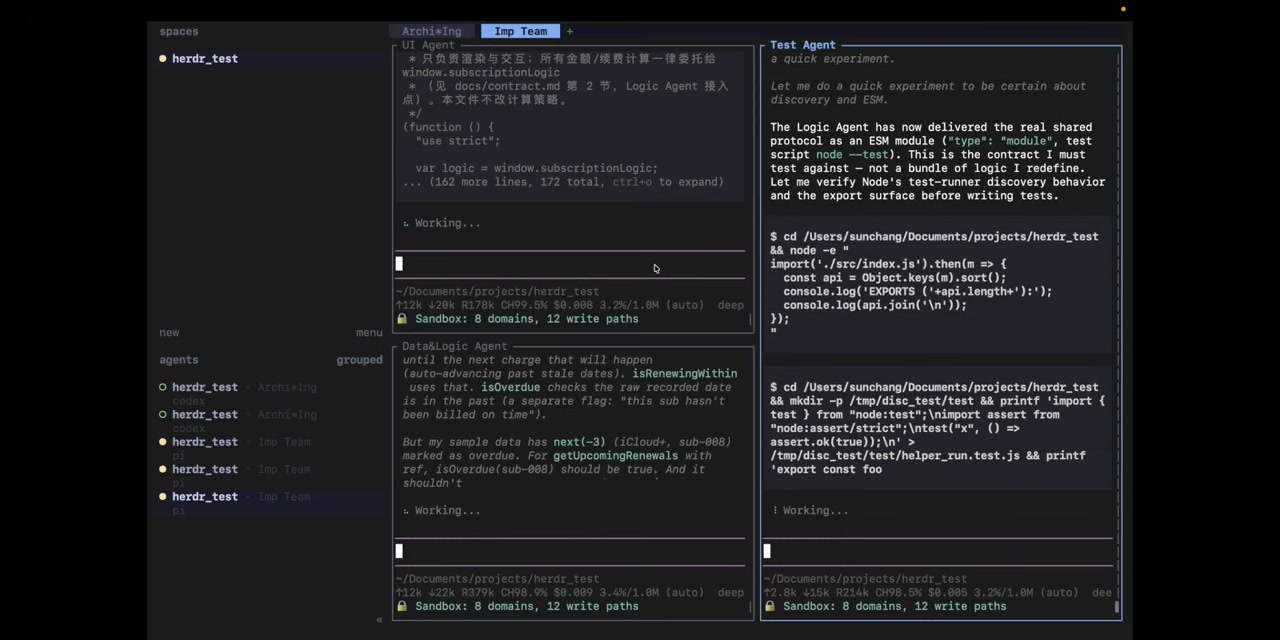
All three Panes start simultaneously. While running, each Pane’s indicator color:
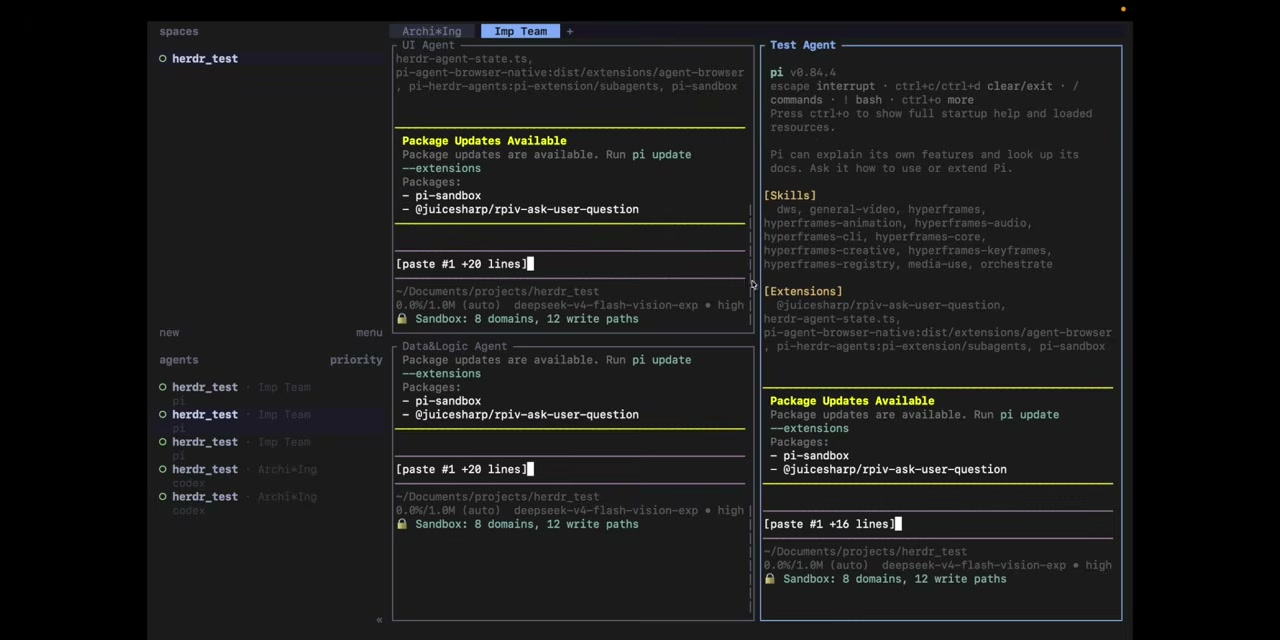
Small detail: Architect / Integrator use a left-right split, so the full prompt is directly visible; UI / Logic / Test are stacked vertically with tight vertical space per Pane — Pi Agent automatically collapses the prompt into a summary view — this is Pi’s “paste-collapse” feature, not Herdr truncating it.
A few red blocked states will pop up along the way (needing your nod or a choice):
- Logic Agent asks whether the currency field should be restricted to ISO 4217
- UI Agent asks about form field ordering
- Test Agent asks how test fixtures should be generated
Recommended handling: default to the Agent’s recommended option for all of them. Don’t over-intervene — otherwise you’ll single-handedly drag down the parallel efficiency.
After watching for a while, the three Agents have each completed their core modules:
4.4 Phase 3: Integrator Does End-to-End Integration
Switch to the Integrator Pane in Tab 1 and give a “consolidate per the shared contract” prompt:
Integrate the code from the three Agents into a runnable WebApp: install dependencies,
npm run build, starthttp-serveron 8000, run all tests, and curl/and/api/statsto verify.
Integrator will run, in order: install dependencies → build → start service → run tests → self-check. It may still trigger red blocked along the way (e.g. npm install -g http-server needs permission) — just let it through as usual.
4.5 Final Result
After successful integration, open http://localhost:8000 in the browser and you’ll see this WebApp:
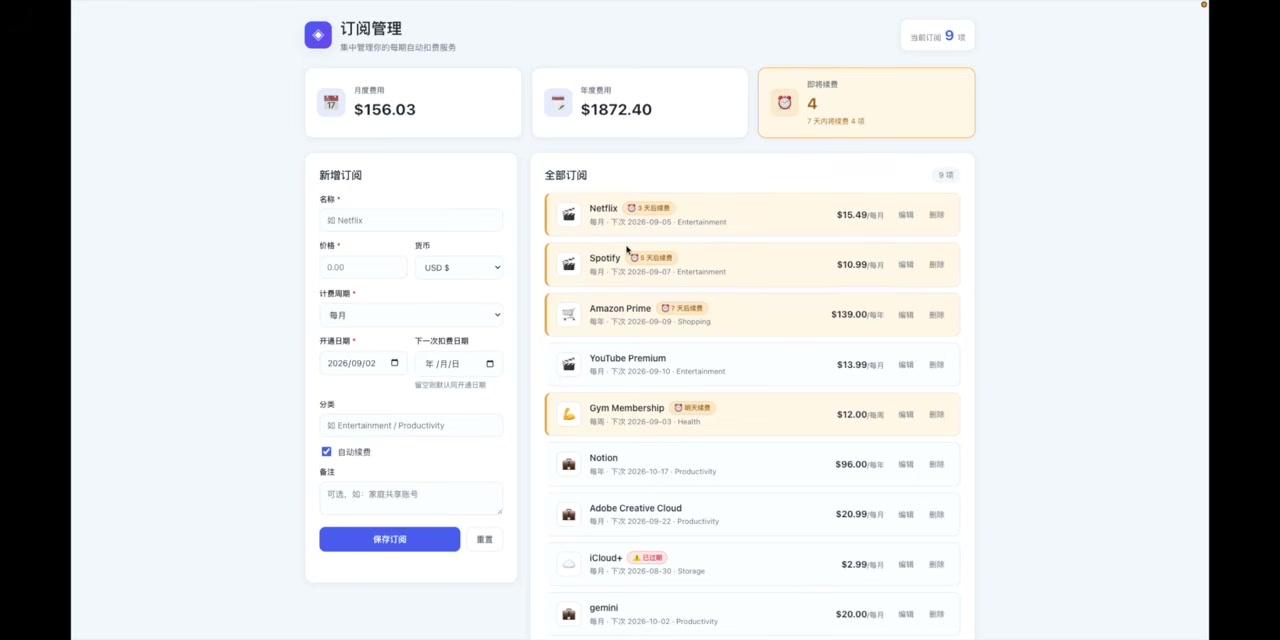
Feature list (verified working):
- Add subscription: name, price, currency, billing cycle, next charge date, auto-renew, notes
- Edit / delete subscriptions
- Auto-aggregated stats: monthly spend, annual cost, upcoming charges within 3 days
- Rows due within 3 days highlighted in orange
- Data persisted to localStorage
The whole flow from “writing prompts” to “running” — 5 Agents working in parallel — and a single human just makes decisions and approves blocked steps.
5. Four Lessons for Reusing This Collaboration Pattern
5.1 Architect First, Then Parallel, Then Integrator
This is the key. Going straight to three parallel implementation Agents without an Architect will cause naming conflicts, mismatched interfaces, and tests failing on edge cases at integration 90% of the time. The Architect’s output is the contract for the other three.
5.2 Pane Name = Team Role
Don’t let Agents guess their role. Explicitly name each Pane Architect / UI / Logic / Test / Integrator. The sidebar auto-aggregates by role, and you can see the team setup across Tabs at a glance.
5.3 Write Prompts Like Contracts, Not Requirements
In parallel scenarios, the more a prompt looks like a contract, the better:
- Data schema: pin down field names in a TypeScript interface
- Interface signatures: give function name + parameter types + return type
- Test boundaries: list “these scenarios must be covered”
- No implementation: let the Agent figure it out
5.4 For Red Blocked: “Prefer the Recommendation, Intervene When Needed”
During parallel work, lots of “Do you want to do it this way?” prompts show up. Default to the Agent’s recommended approach, and only step in when:
- It involves external destructive operations (delete files, install global packages, restart services)
- The security policy the Agent proposes doesn’t match your expectations
- Multiple Agents’ approaches conflict (this is the signal that Architect didn’t do its job)
6. What Real Pain Points Does This Solve
Compare it to the everyday multi-agent development pain:
| Pain Point | Without Herdr | With Herdr |
|---|---|---|
| Who’s waiting for you | Flip through four windows to scan | A red “blocked” in the sidebar is instantly visible |
| SSH disconnect / terminal close | Long-running task is dead | prefix + q, then reconnect and continue |
| Projects on multiple machines | Open separate terminal sets per machine | One window + herdr remote |
| Checking from your phone | Impossible | Any SSH client + TUI |
| Coordination between Agents | Manually copy results around | Socket API (see Herdr architecture article) |
If you’re running ≥2 AI coding agents at the same time, Herdr is almost a must-install. Pi Agent users can additionally install the pi-herdr-agents extension, which lets an Agent directly use the socket API to spawn other Panes — multi-agent orchestration now has a native runtime foundation.
One command to install, ten minutes to get going, five teammates working in parallel. Give yourself a week after installing — odds are you won’t go back.
Website: herdr.dev · Docs: herdr.dev/docs · Chinese Quick Start: herdr.dev/zh-cn/docs/quick-start · Repo: github.com/herdrdev/herdr